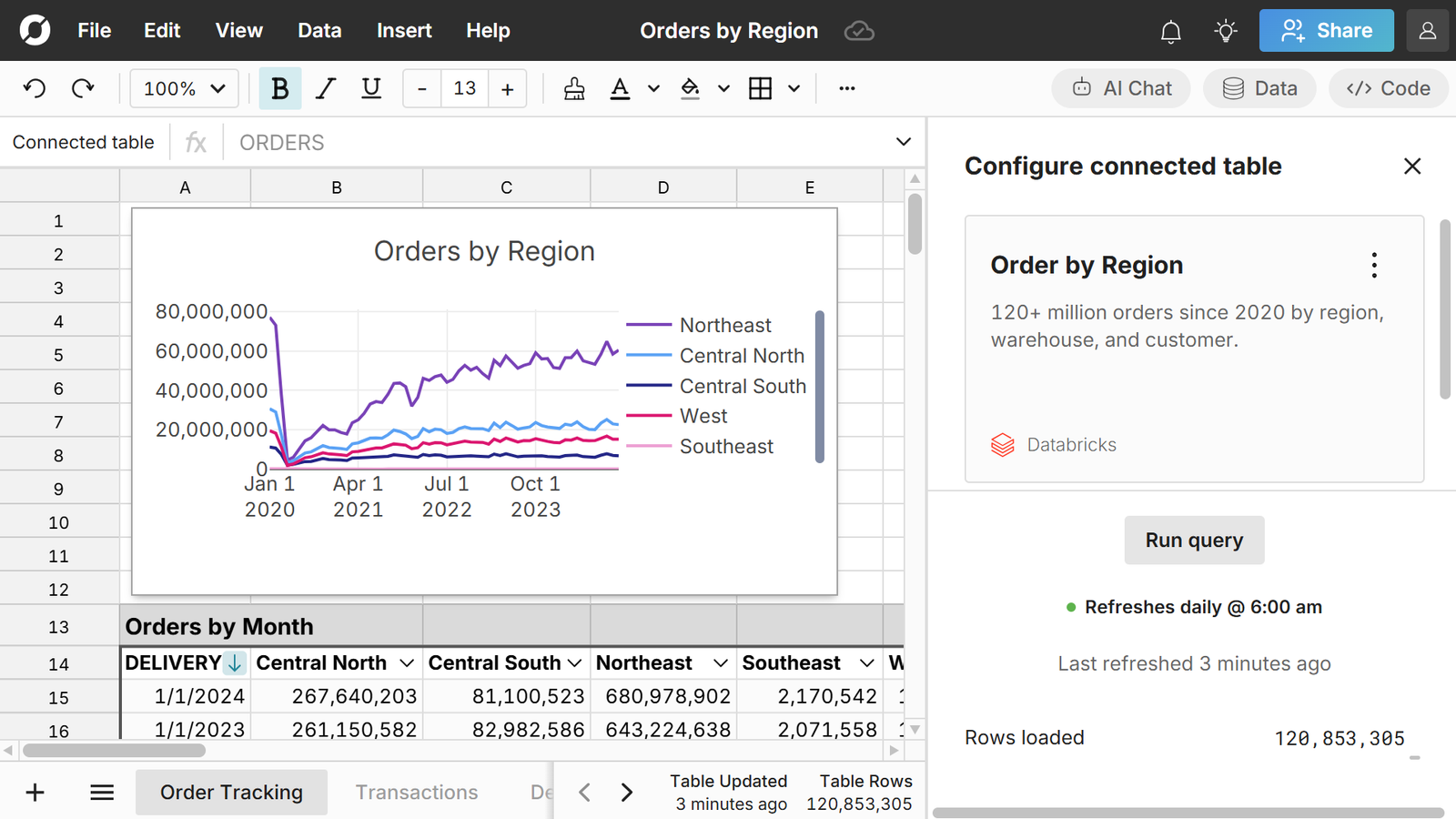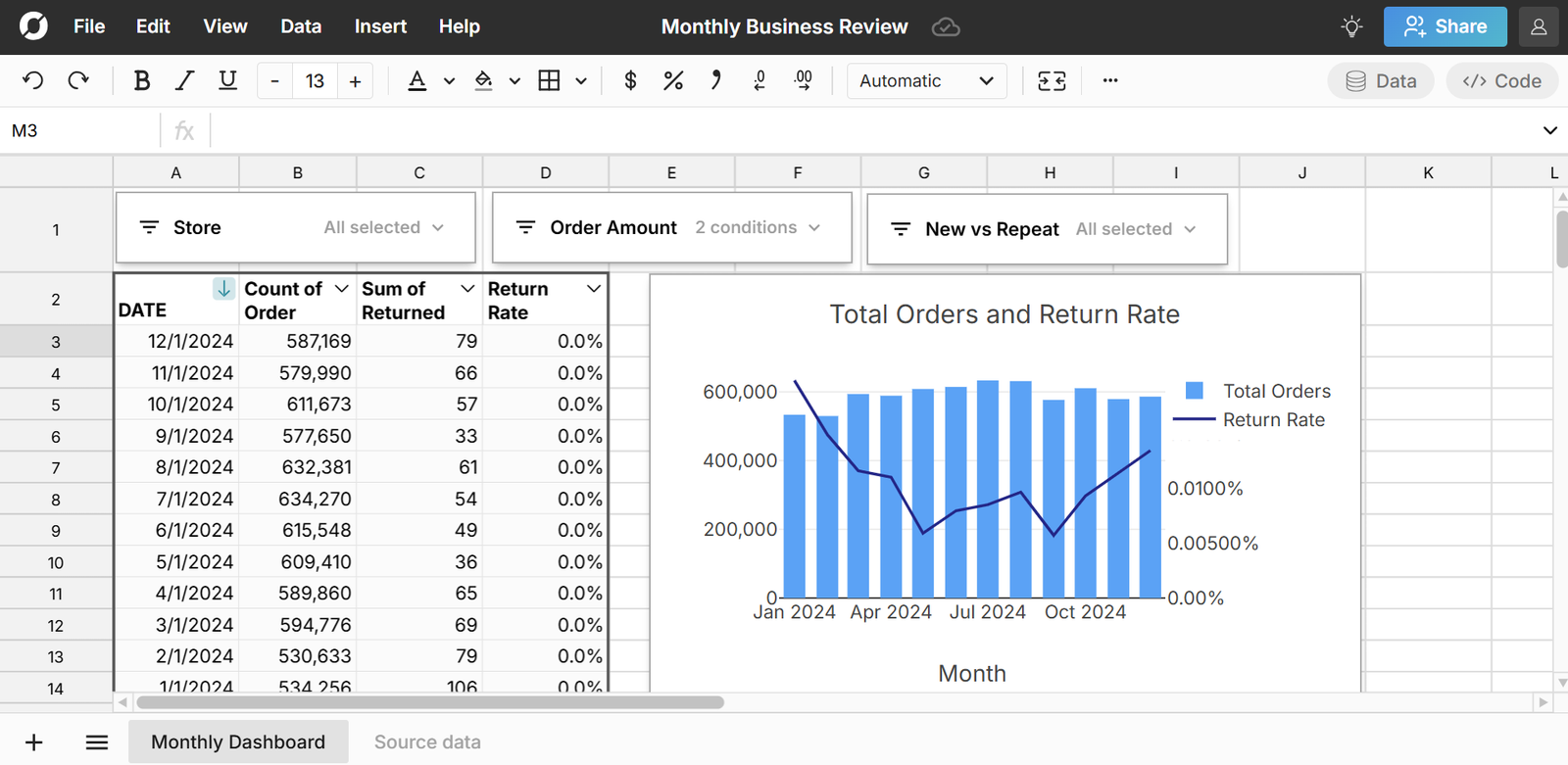
Row Zero is a connected spreadsheet built for big data. You can easily connect directly to your data warehouse and build auto-updating spreadsheets. Everything built on connected data automatically updates when source data is refreshed, including pivot tables, charts, formulas, etc. You can schedule spreadsheets to auto-update at a specific time each day or can manually refresh data on demand.
In this guide we'll show how to build a connected spreadsheet and automate spreadsheet updates. Open a new workbook to get started.
Connecting spreadsheets to your data
Row Zero makes it easy to connect spreadsheets to your data warehouse with built-in connectors to Snowflake, Databricks, Redshift, BigQuery, Postgres, Oracle, and more. Here's how to connect:
- Open a workbook in Row Zero: Login or sign up for free and open a new spreadsheet.
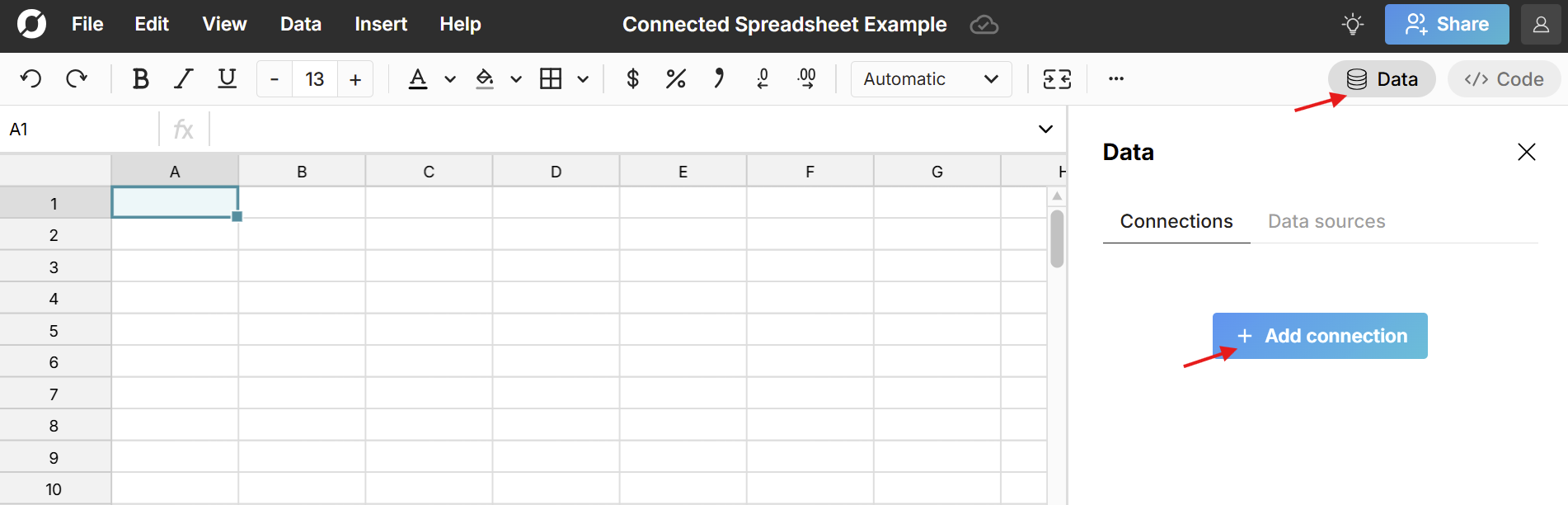
- Connect to your data source: Click the Data button in the top right corner of the spreadsheet and click Add connection.
Select your data source, enter your connection details and click Test connection.
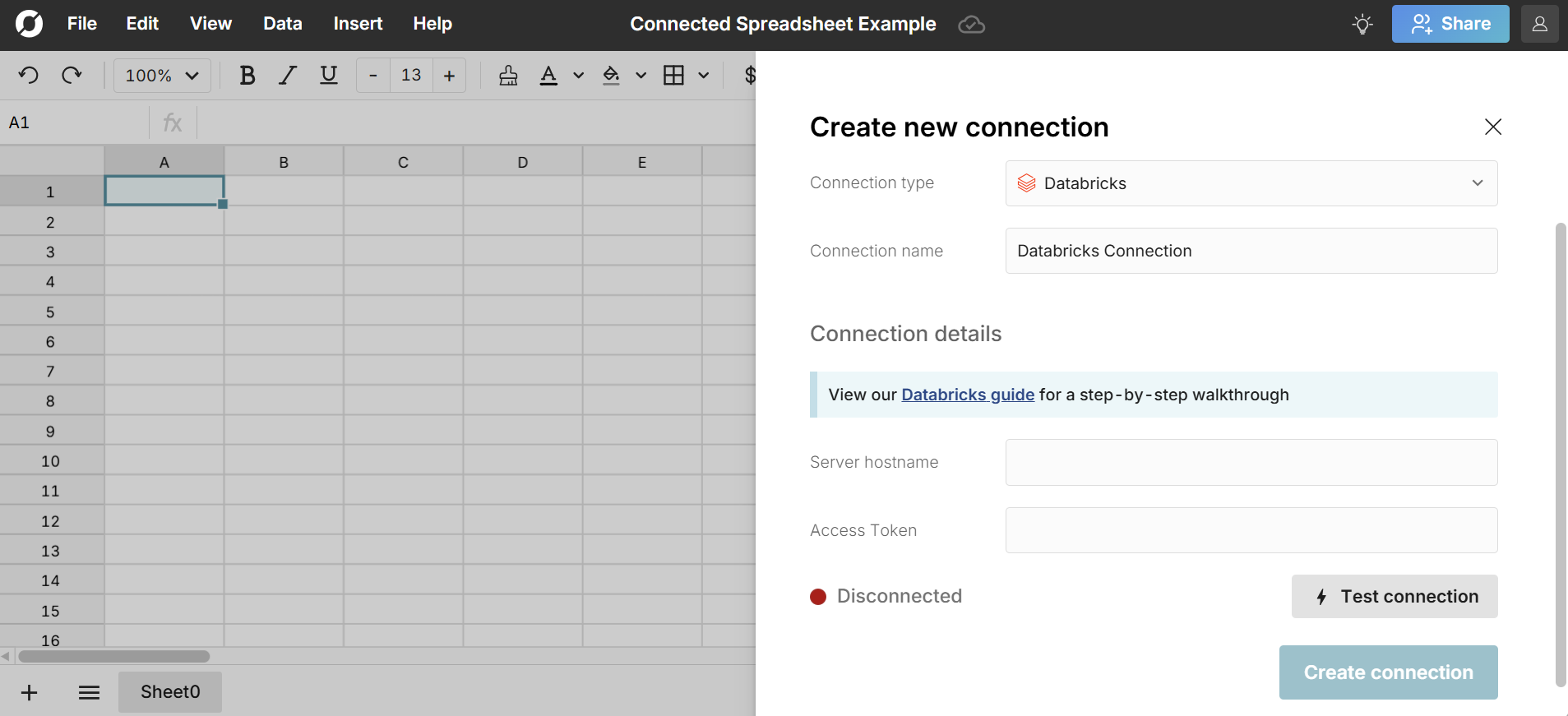
A green light indicates you've successfully connected. Click Create connection to finish connecting.
- Write a query to import data: Once connected, click the + sign next to your data source to insert a connected table. Write a SQL query in the editor and click Run. The queried data imports seamlessly into the connected table in your spreadsheet.
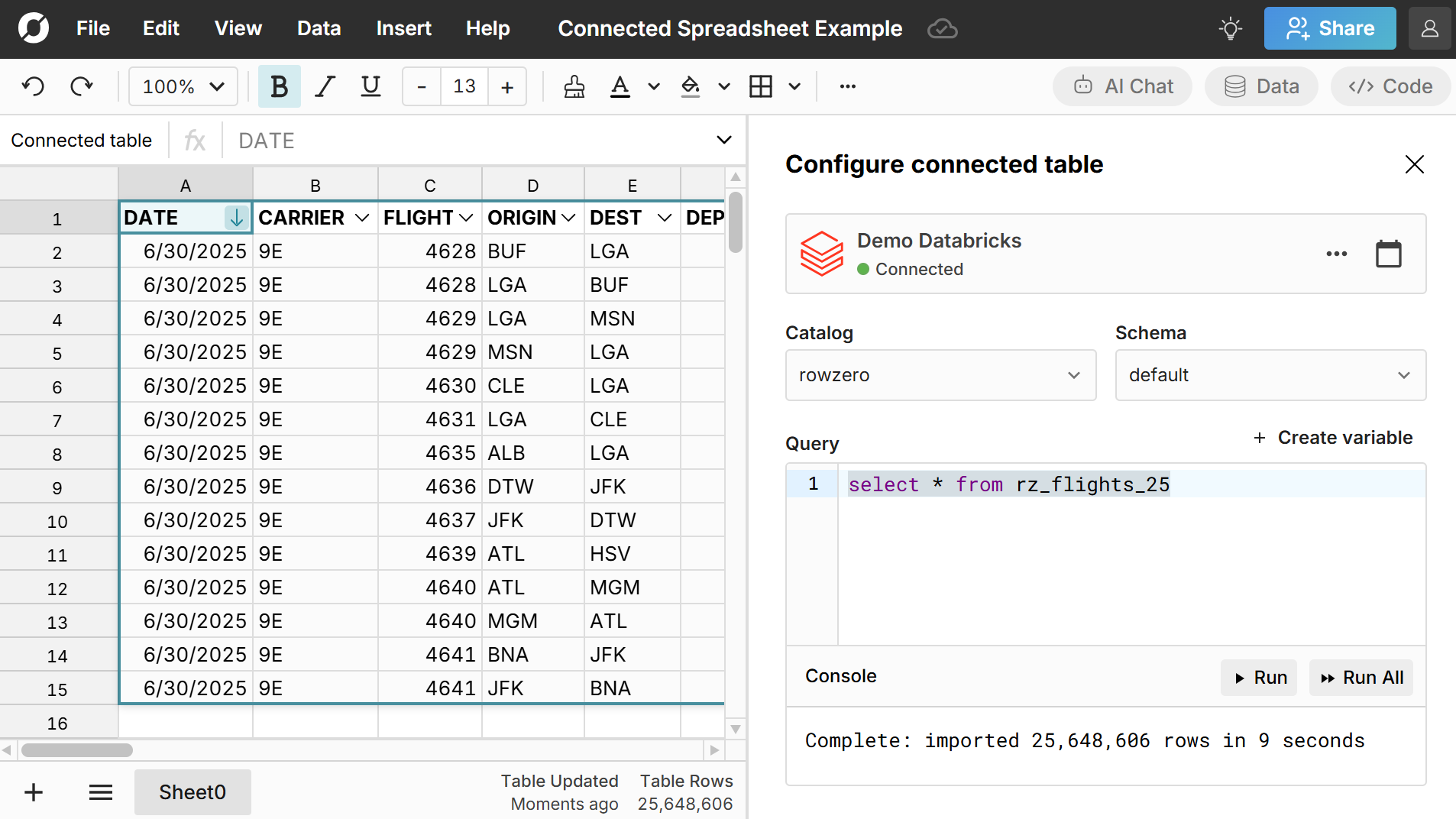
From here Row Zero works like Excel and Google Sheets. You can filter and sort, write Excel-compatible formulas (same functions and syntax), create pivot tables, add charts, and leverage familiar keyboard shortcuts.
The connected table maintains your connection to your data source, so at any time you can double-click on the connected table to re-run your query or schedule auto-updates. When data is refreshed, all downstream pivot tables, charts, and formulas update dynamically.
Note: You can also share your query as a dynamic data source with teammates, so you can give non-technical users a no-code way to connect to data and build auto-updating spreadsheets.
How to automate spreadsheet updates
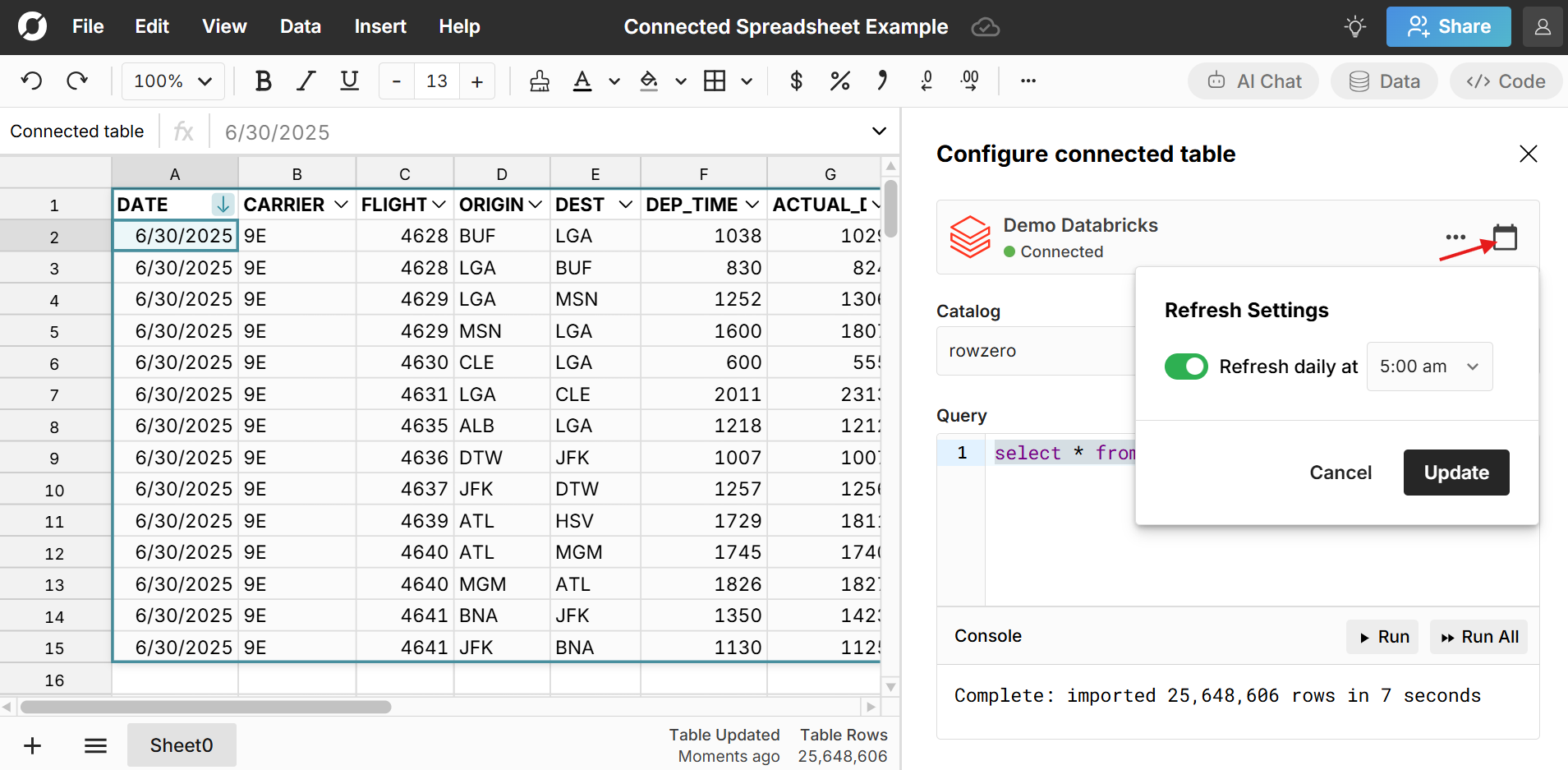
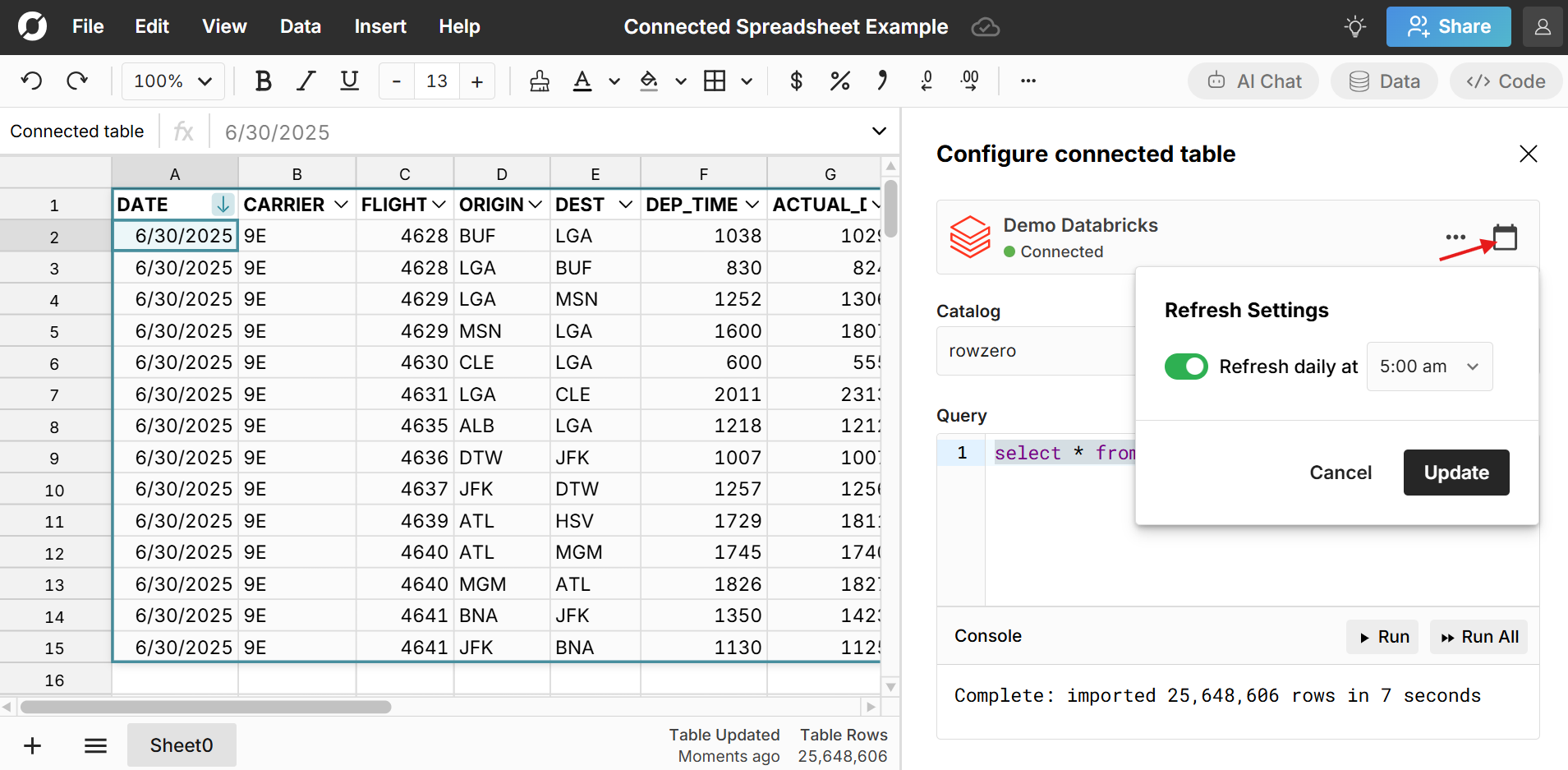
Everything you build on connected data automatically updates as source data is refreshed including formulas, pivot tables, charts, etc. To schedule auto-updates for your source data, double-click on your connected table and click on the calendar icon in the top-right of the query editor to select a time for daily refresh.
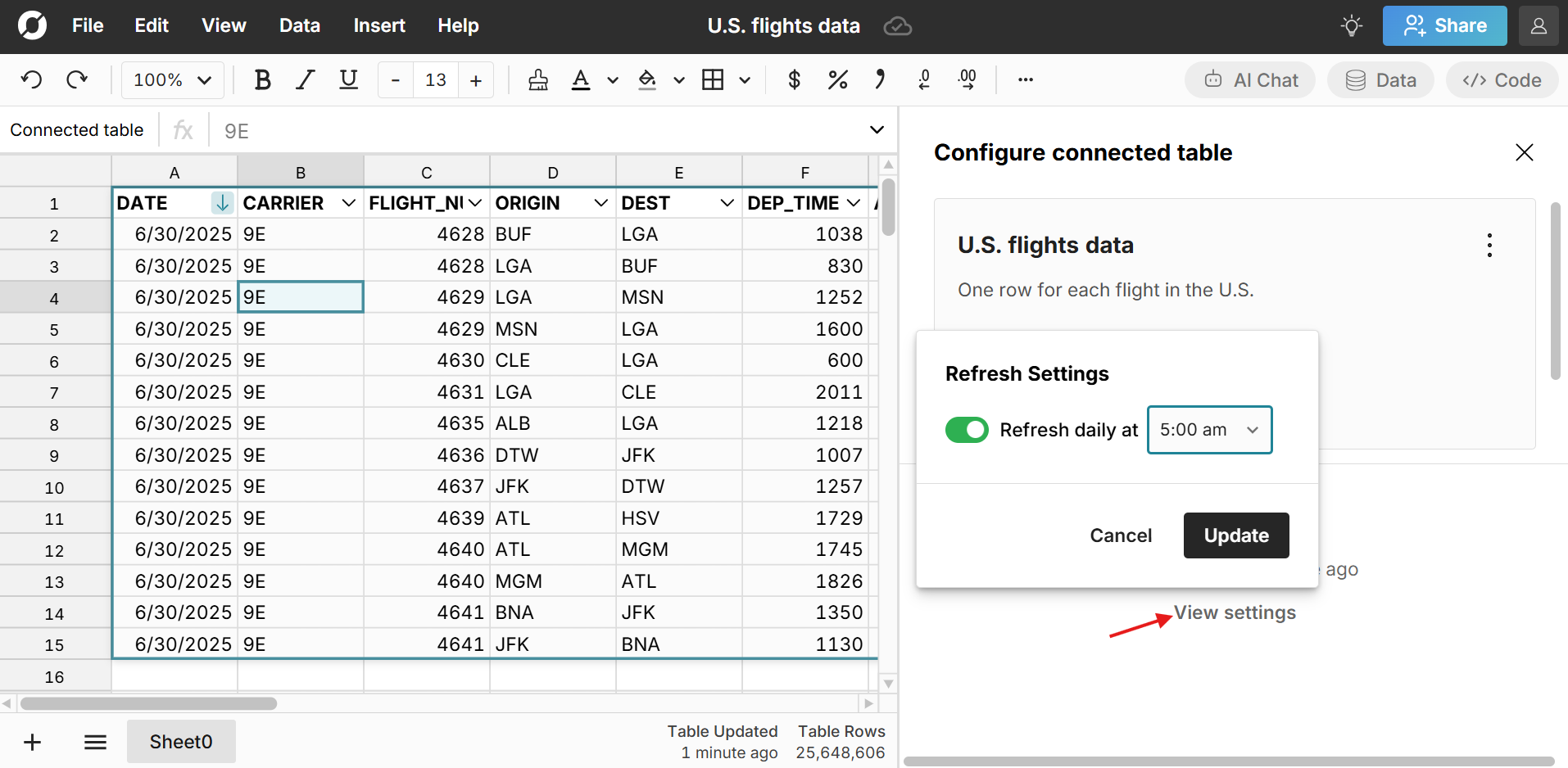
If working with a shared data source, you can similarly click on the connected table to open the editor and click on View settings to automate data updates in your spreadsheet.
Note that all transformations are automatically applied to the new data including formula calculations, formatting, filters, sorts, slicers, etc.
Building out a connected spreadsheet
Row Zero works like Excel and Google sheets so it's easy to build out auto-updating spreadsheets connected to your source data using familiar spreadsheet functions and features like pivot tables, charts, formatting, slicers, etc.
Here's more info about building connected spreadsheets in Row Zero.
Sharing auto-updating spreadsheets and data sources
There are two options for sharing dynamic data in Row Zero:
- Share the spreadsheet - Click the blue Share button in the top right of your spreadsheet to share it with teammates and collaborate in real-time.
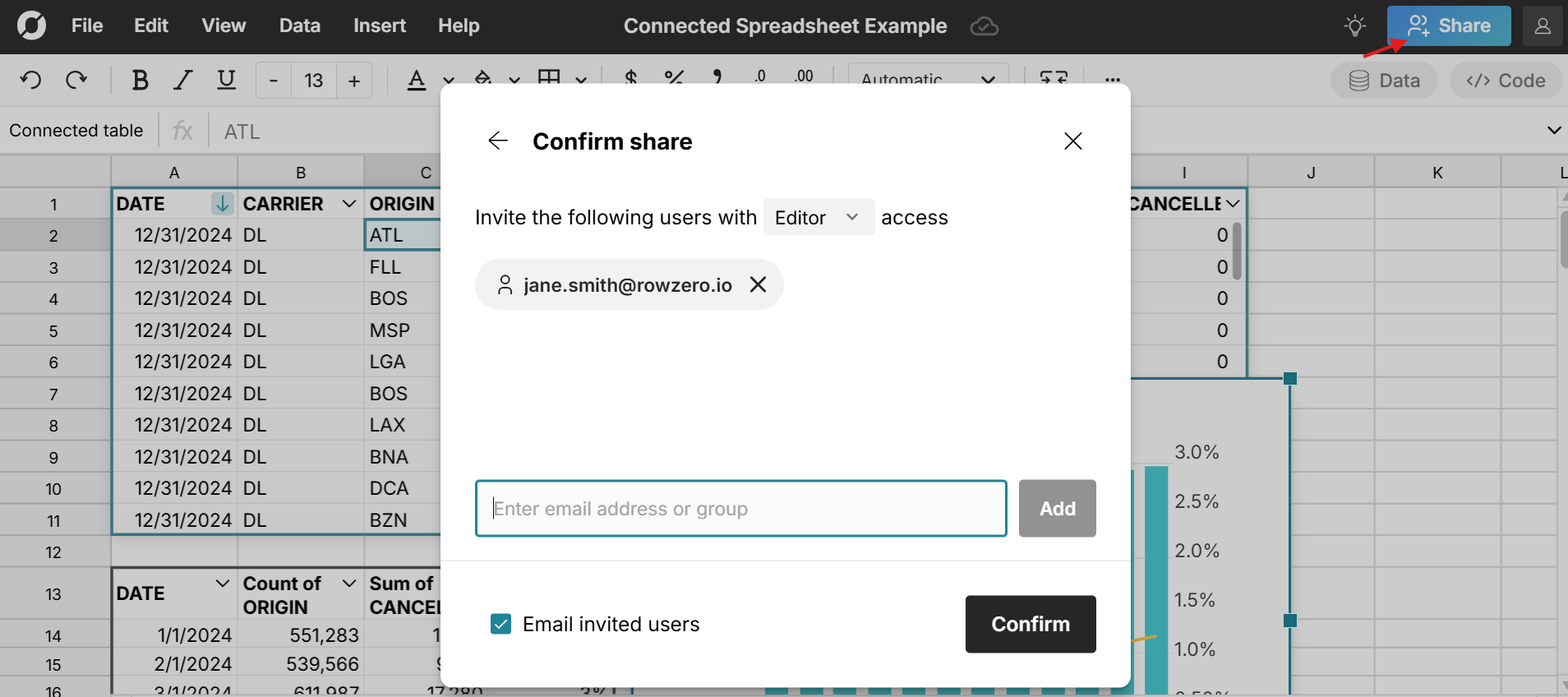
- Share the data source - Share one-click access to the source data query via the data sources feature. This lets data teams share governed queries as dynamic data sources that give non-technical users no code access to live, updating data warehouse data.
Advantages of automated spreadsheet updates
Automating spreadsheet updates offers several important advantages over static, manual updates including:
- Efficiency - Build your report or analysis once and then your spreadsheet is always up-to-date with the latest data. No need to rebuild reports, download files, or upload files. Updates occur automatically according to the schedule you set.
- Data security - Row Zero connected spreadsheets are secure by default and eliminate the security risks of legacy spreadsheet usage. There are no files. Enterprise data is only accessible by authorized users via a secure company login. Connected spreadsheets inherit row level security and access controls from the data warehouse.
- Data integrity - Automated spreadsheets significantly improve data integrity. Core spreadsheets are built once and then automatically update with new data from a consistent source, so users are confident in the data they're looking at. Users can also write-back spreadsheet data to the data warehouse to ensure final reports and analysis are centralized.
- Data consistency - Row Zero automated spreadsheets update at the same time each day (at a time of your choosing), even if you aren't active in the spreadsheet. This ensures a consistent daily view of your data so you can easily compare time periods. The version history feature lets you go back to any of these daily updates to see the daily spreadsheet snapshot.
Connected spreadsheets are great for recurring spreadsheet workflows like weekly business reviews, daily tracking spreadsheets, and ETL pipelines. You can also leverage built-in date aggregation in pivot tables to automatically summarize data by day, week, month, etc. as new data is added.
Conclusion
Row Zero makes it easy to build big, connected spreadsheets that automatically update with the latest data. Automating spreadsheets is one of the best ways to improve spreadsheets in your organization. Automated spreadsheets greatly improve efficiency, data security, and data integrity and help make big data accessible. The data sources feature makes it easy to give business users secure access to data warehouse data in a familiar spreadsheet tool and enables self-serve business intelligence across teams. Getting started is easy - simply login or signup, create a new workbook, and connect to your data source.
Frequently asked questions
Row Zero connected spreadsheets have built-in connectors to popular data sources like Snowflake, Databricks, Redshift, Postgres, etc. You can easily import datasets and schedule auto-updates. When source data updates, it updates all formulas, pivot tables, and charts that reference the data.
You can connect Excel to data sources via ODBC drivers downloaded on your computer, Excel add-ins, or Power Query. Some of these solutions support automated data updates in Excel.
Row Zero has built-in connectors to many popular data sources including Databricks, Snowflake, Postgres, Oracle, Redshift, BigQuery, and more.