Shared Data Sources
The Data Sources feature lets data teams share queries with teammates as dynamic data sources that can be refreshed or scheduled to update automatically. This is an easy way to give less technical users one-click access to live updating data and makes it easy to get teams using governed "source of truth" datasets. Data sources support both OAuth connections and service accounts:
- If using OAuth, shared data sources run the query as the end user with their connection. Row level security is enforced from the data warehouse and the query can only run if the user has database access.
- If using a service account, the query will always run on the same connection used to create the data source and anyone you share the data source with in your organization can run the query.
Creating data sources
Before you start: Create a data connection. Row Zero has native connectors to Postgres, Snowflake, Databricks, BigQuery, Redshift, and more.
To create a data source:
-
Import data into a connected table. See Data import for details on querying data connections.
-
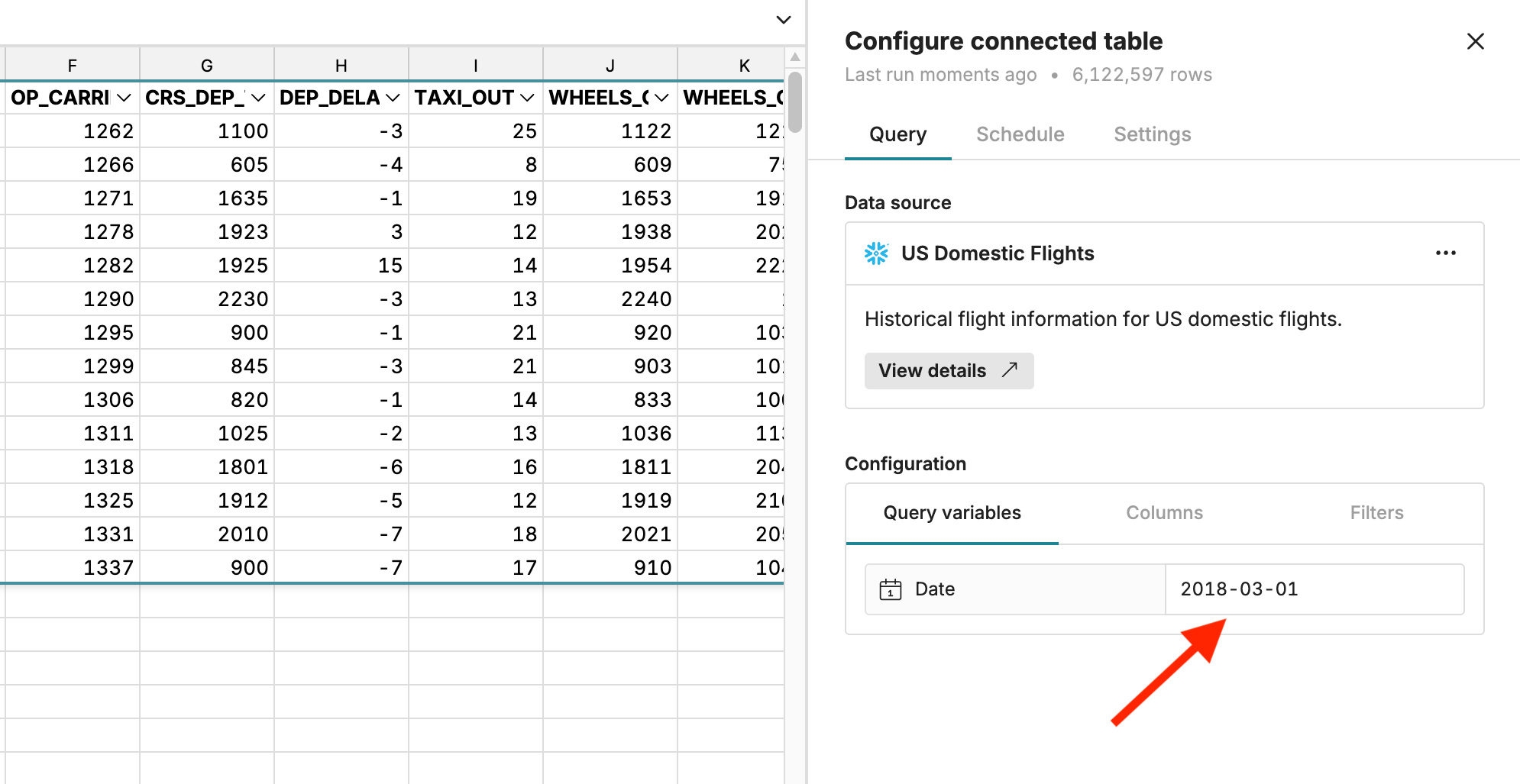
When ready to publish your query as a data source, open the Configure connected table side pane and click Publish.
-
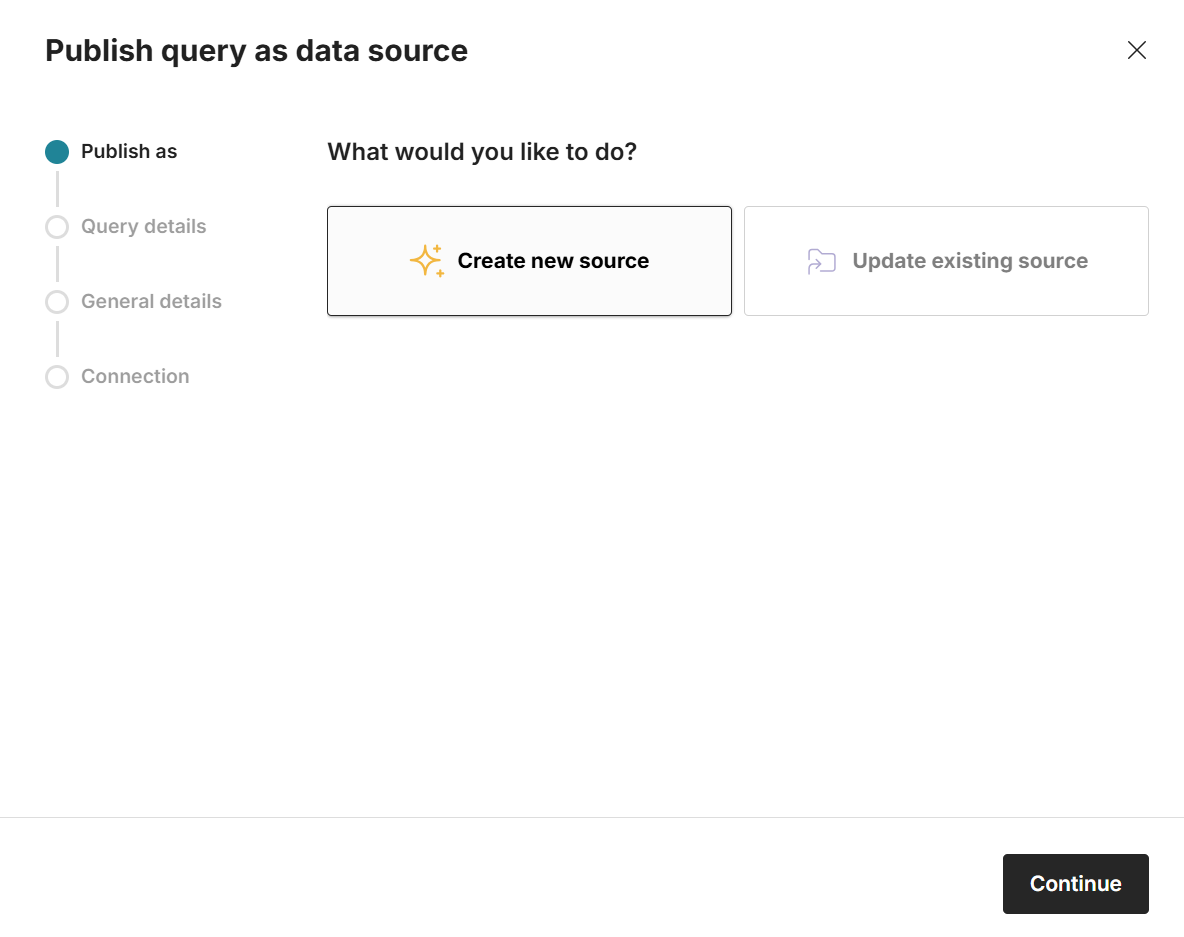
Select Create new source and click Continue to set up your data source.
-
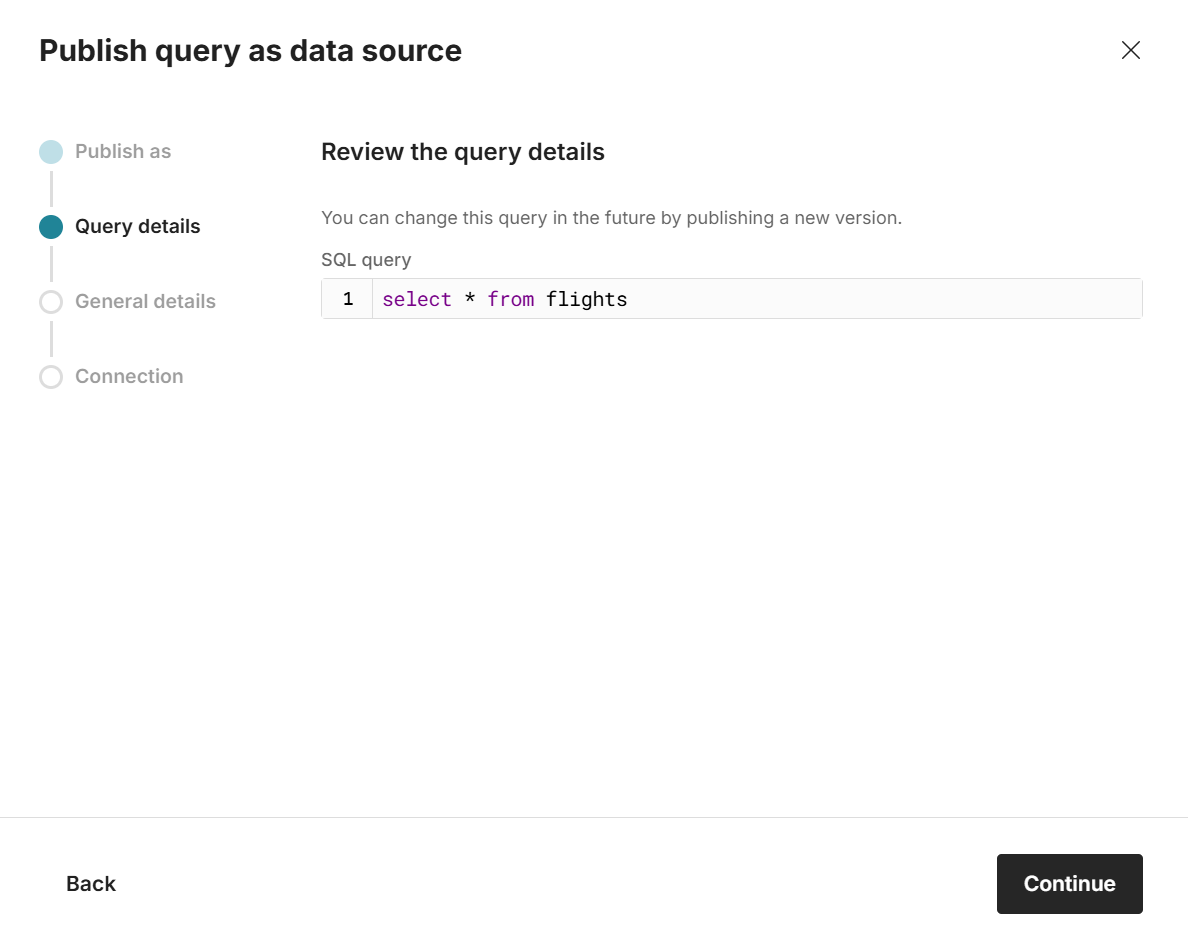
Review the query details and click Continue.
-
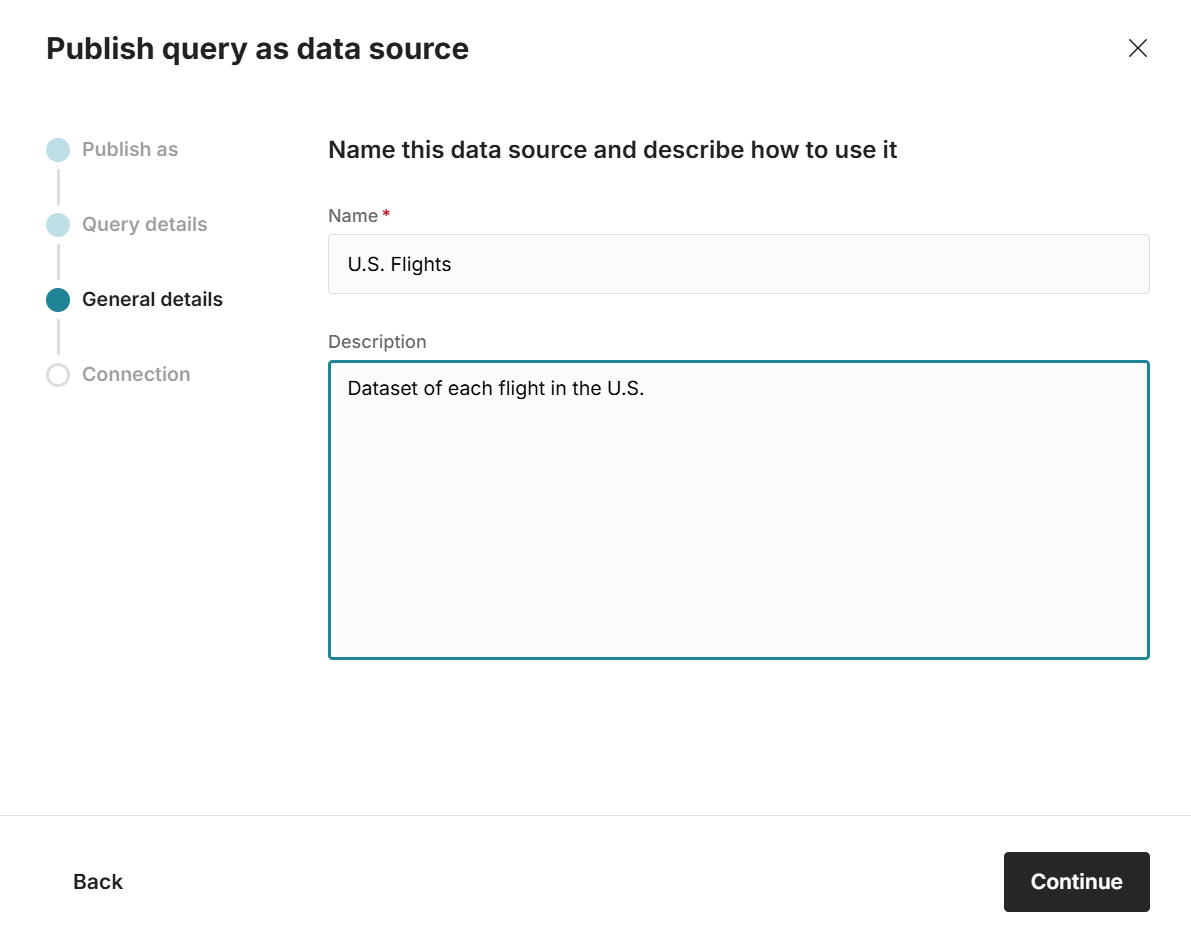
Give your data source a name and description.
-
Review the connection details. These will differ depending on whether you are using OAuth or a service account:
- If using OAuth, shared data sources will run the query as the end user with their connection. Row level security is enforced from the data warehouse and the query can only run if the user has database access.
- If using a service account, the query will always run on the same connection used to create the data source and anyone you share the data source with in your organization can run the query.
-
After reviewing, click Continue to create your data source
-
Click Share data source and enter the email addresses you'd like to share with.
-
The data source will now be accessible to both you as the owner and to all users you share it with. Data sources can be accessed in two places:
-
From any workbook, select Connected table in the Insert menu. On the Data sources tab, scroll or search for the data source you want and click Insert into workbook. Users can optionally update query variables, select columns, and add filters.
-
From the Home page, select Data sources in the left sidebar. Select your data source and click New workbook. The data source will import into a new workbook.
-
-
The data source will import into a connected table in the workbook. See Data Import for more information on working with connected tables, including scheduling refreshes.
Using query variables in data sources
When creating a data source, you can optionally create query variables to make it easier to filter data before importing to your sheet. Here's how:
-
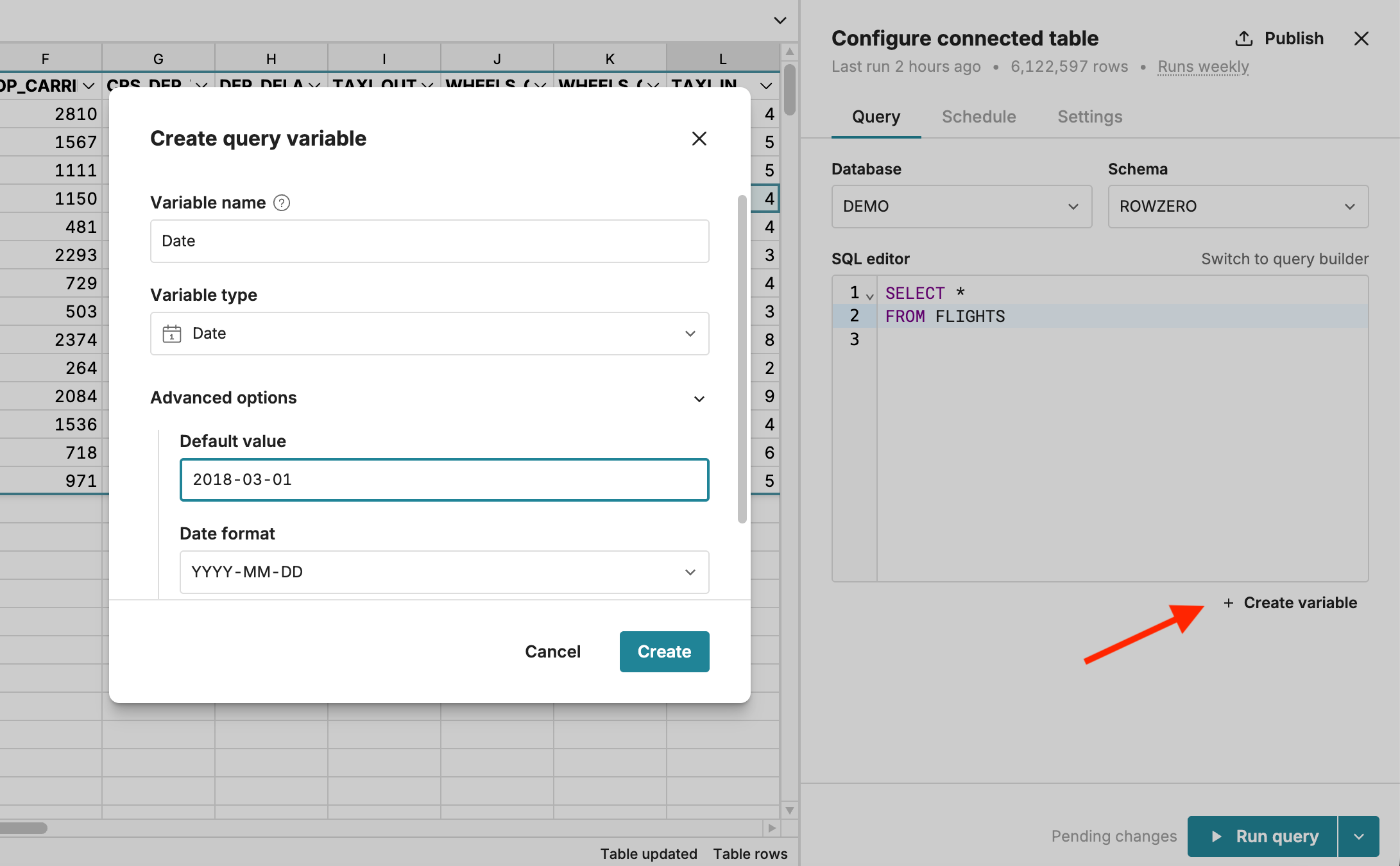
When creating your data source, click Create variable. Name your variable, select your variable type, optionally assign a default value, and click Create. Variables can be text, dates, numbers, or user emails.
-
Write your SQL query and assign the query variable to the name of the column you want to query using a
WHEREclause and double braces (see screenshot below). Click Run query.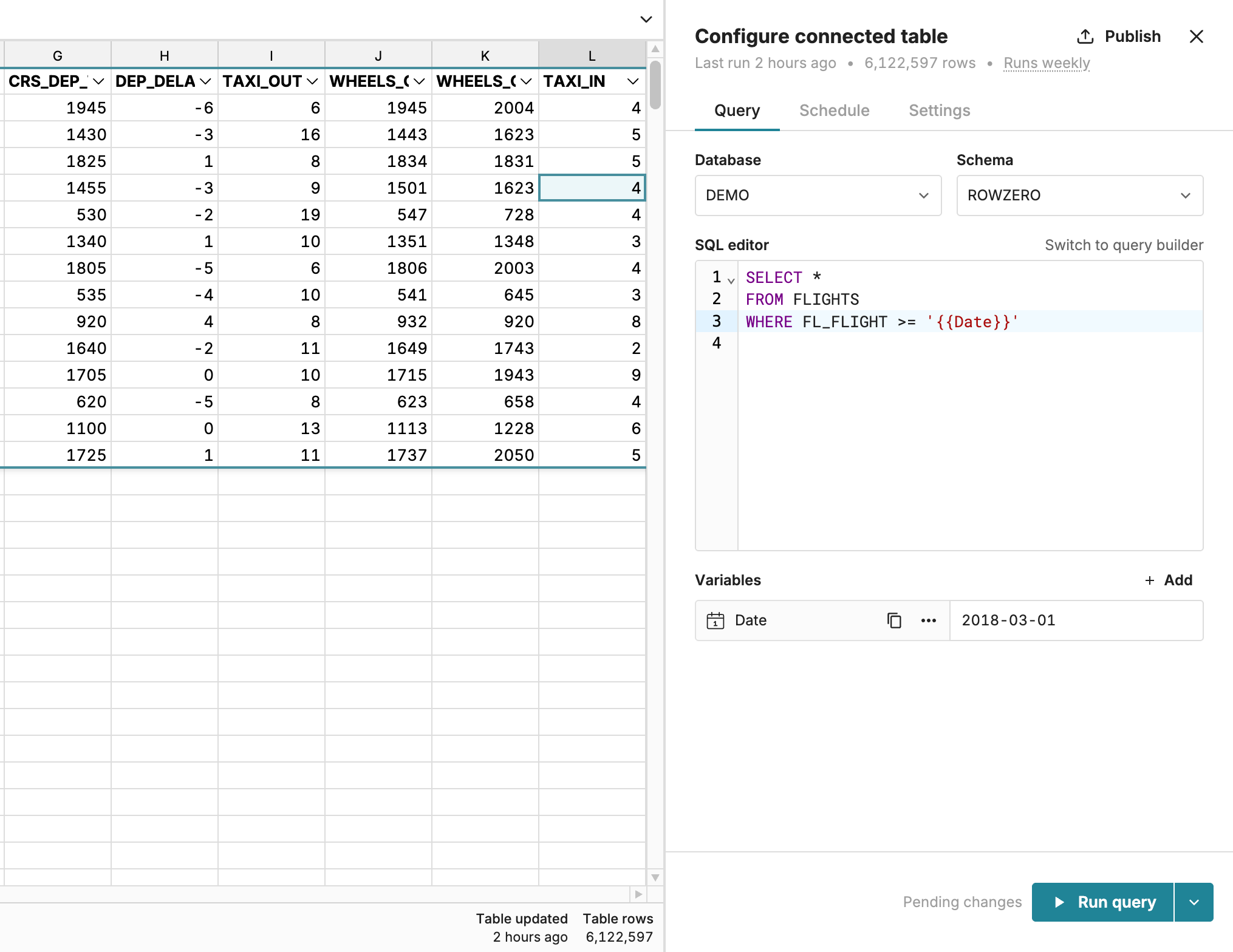
-
After the query runs successfully, click Publish in the top right corner.
-
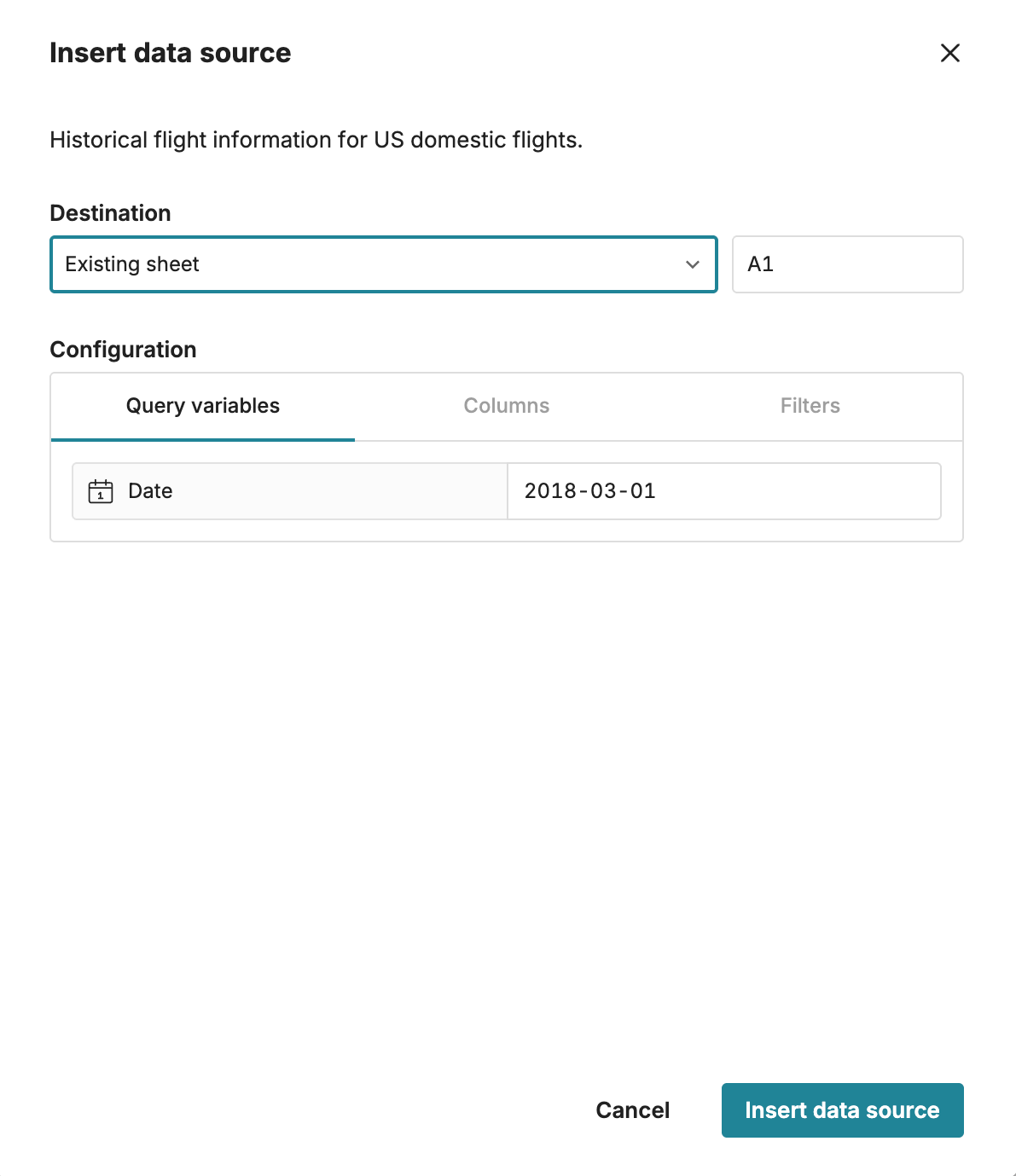
When inserting this data source into a workbook, the user is prompted to input a value for the query variable.
-
A new workbook will be created from the data source, filtered based on the query variable.
-
At any time, you can change the value for the query variable and Run query to filter your dataset to the updated query variable value.