Connect Databricks to Row Zero
Row Zero's built-in Databricks connector makes it easy to connect your spreadsheets to Databricks using a personal access token or Databricks OAuth. Row Zero supports all cloud platforms (AWS, Azure, and GCP).
Choosing the right authentication method
Personal Access Token authentication is appropriate for individual Row Zero accounts or for connecting service accounts in larger organizations. For the second use case, we recommend creating a dedicated user in Databricks for this purpose, then connecting Row Zero using personal access token. Once the connection is created in Row Zero, you can securely share it with the appropriate people in your organization.
OAuth is the best authentication method for organizations where users have their own Databricks credentials. Any queries using OAuth connections respect the database permissions of the person who runs the query, including RLS and RBAC.
Connect using Personal Access Token
Follow the instructions below to connect to Databricks using a Personal Access Token.
-
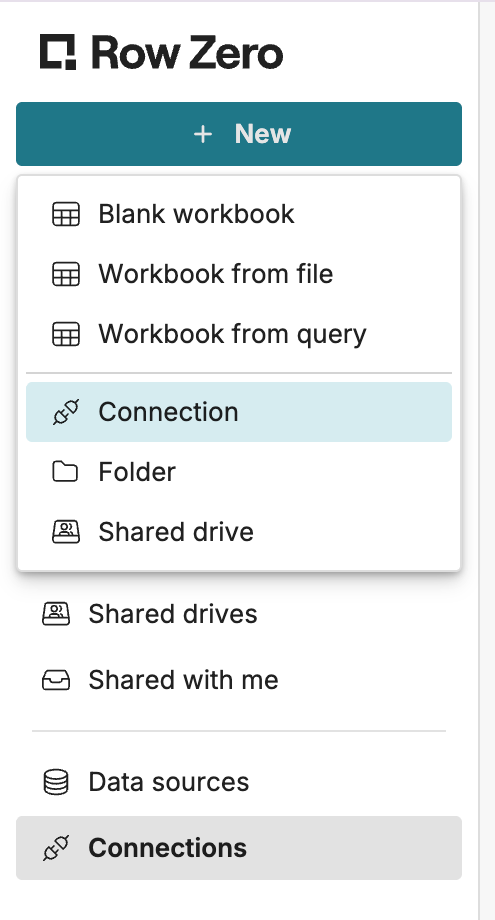
From your Row Zero homepage, click + New in the upper left corner and then choose Connection.
-
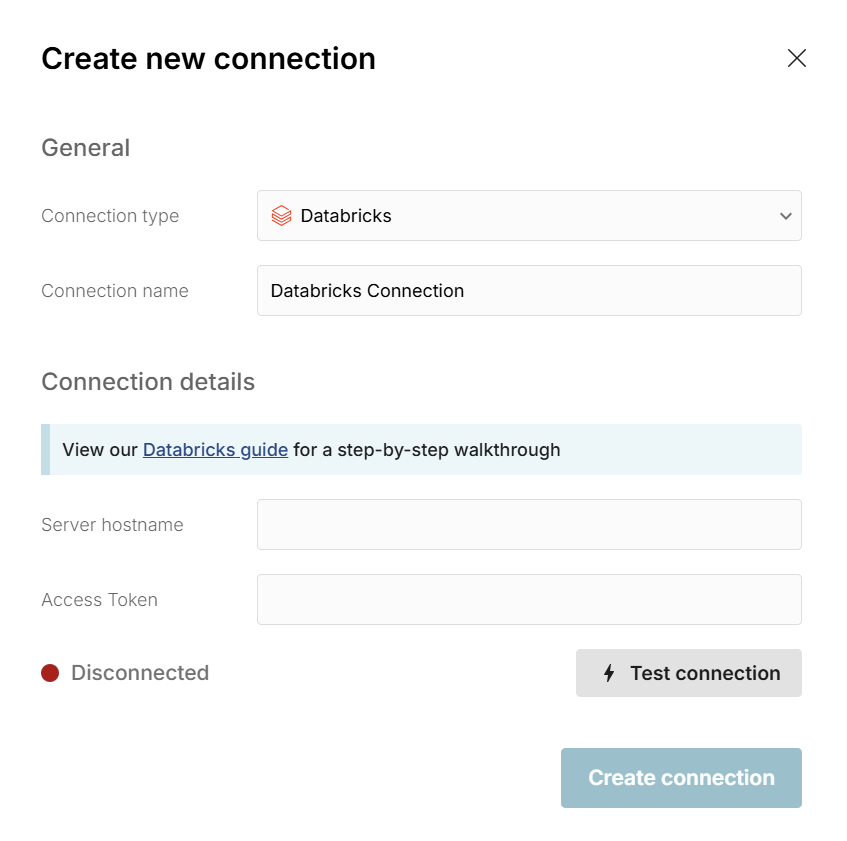
Choose Databricks. The Databricks connector requires a few pieces of information, defined below.
-
Connection name: This field can be anything that helps identify the data source being connected (e.g. "Production Data" or "Product Metrics"). It will be visible to all users who have access to this connection.
-
Server hostname: This is the Databricks warehouse name, which can be found in your Databricks portal under the SQL Warehouses menu. In SQL Warehouses, click on the warehouse you wish to connect to. Your server hostname is listed under 'Connection details' and is the long string of letters and numbers under "server hostname" at the top of the screen (e.g.
cbd-9hfliu9u-83jd.cloud.databricks.com).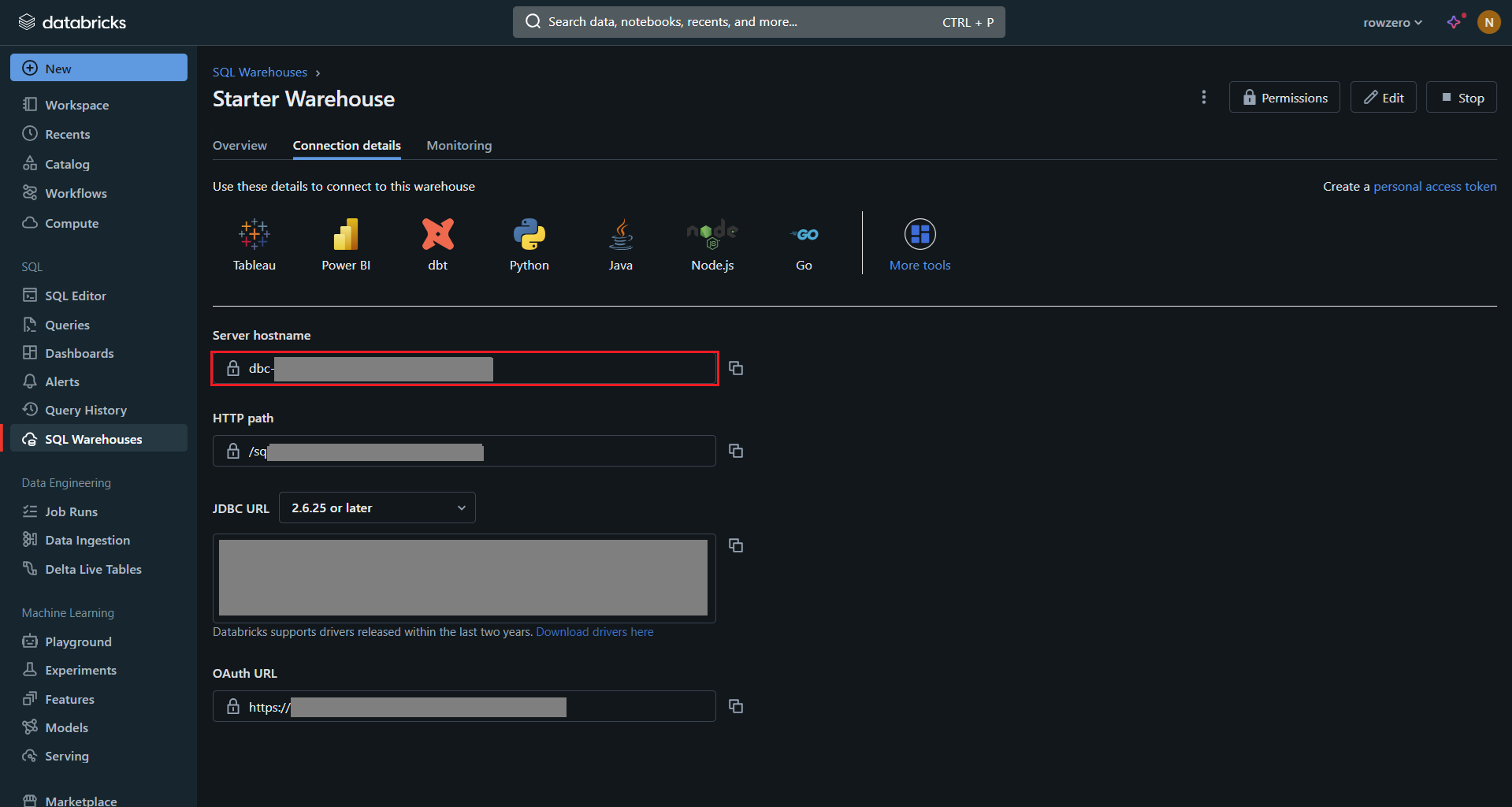
-
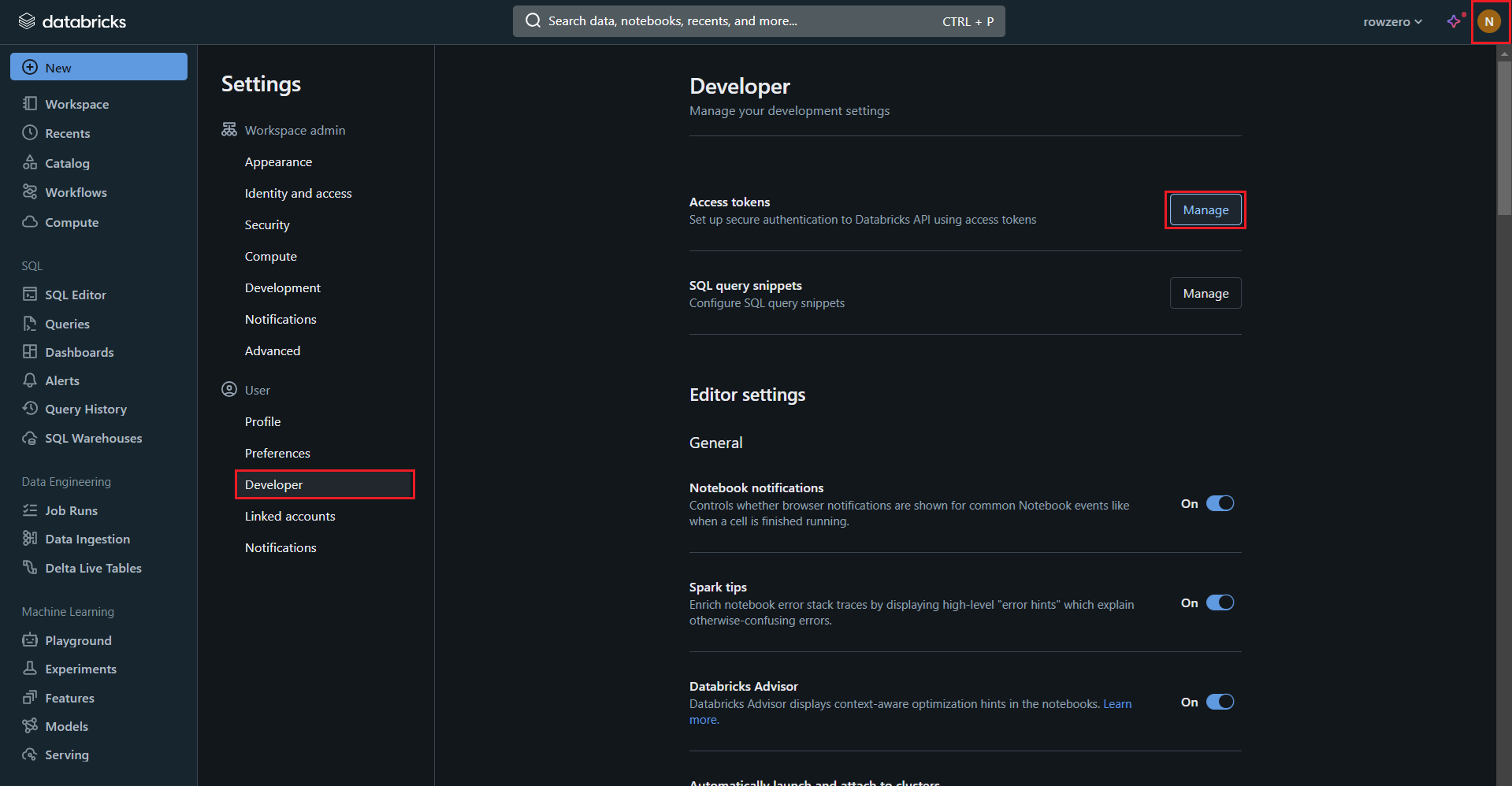
Access Token: Your access token can be generated by going to your account icon in the upper right-hand corner of the Databricks portal, selecting 'Settings' and then 'Developer.' Click the blue button to generate your access token. If you do not see a blue button, contact your Databricks account admin.

-
-
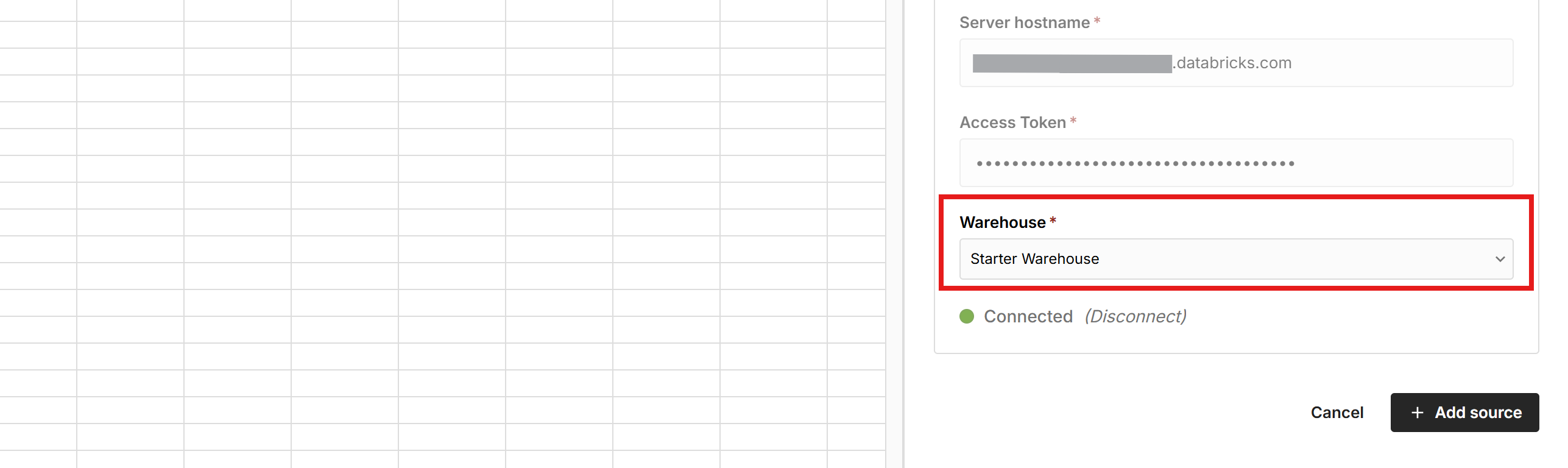
Once all the information is entered, hit 'Test connection' to ensure the information is correct.
-
Once the connection turns green, you can select which of your Databricks SQL Warehouses you want to use for Row Zero queries and click '+ Add source'.
-
If you would like other users to be able to use this personal access token to query Databricks from Row Zero, you can securely share the connection with them in Row Zero. This is appropriate if multiple users share a service account. To share your connection in Row Zero:
- Navigate to your Connections page.
- Find the Connection that you'd like to share, click '...' next to the name of the connection, and select 'Manage sharing'.
- Enter the emails of the users or groups that should have access to this connection.
Connect using Databricks OAuth
If you wish to use Databricks's built-in OAuth capabilities to provide OAuth-based authentication for your users when they query Databricks from Row Zero, follow the steps in the Databricks documentation here. You will need administrator privileges in your Databricks account.
You will need the following information:
- Application Name: Row Zero
- Redirect URLs:
https://oauth.rowzero.com/oauth/authorization-code/1 - Access scopes: sql, offline_access, genie
- Client Secret: Generate a client secret
Make sure to remember the client ID and client secret.
Once you have added an App connection, contact us at Row Zero so we can schedule a meeting to configure the OAuth integration on our end.
This is the information that we will need from you:
- The Server hostname for your Databricks workspace, e.g.
https://dbc-00000000-0000.cloud.databricks.com. - The Client ID from the App connection that you configured in the steps above.
- The Client Secret from the App connection that you configured in the steps above. Do not share this via email or other unsecured means. We will give you a secure way to provide your secret.
Enable Databricks Genie
Databricks Genie lets users ask natural language questions against Databricks data. Row Zero discovers the Genie Spaces that are available to a Databricks connection and can use a selected space to generate SQL.
Prerequisites to enable Databricks Genie in Row Zero:
- Admin access to the Databricks account and workspace.
- At least one Genie Space
- Genie enabled in Databricks. See Databricks Genie documentation for requirements.
- At least one Genie Space for the data users should query.
- A Row Zero Databricks connection in the workspace where users will use AI generated queries.
- Enterprise customers must also configure an AI provider in Row Zero.
Enable Genie in Databricks
To access Genie in Row Zero, you’ll first need to enable Genie in Databricks.
- Genie Spaces use Databricks partner-powered AI features, so an account admin should confirm that partner-powered AI features are enabled at the account level and not disabled for the workspace. See Databricks' Partner-powered AI features documentation.
- Confirm the required workspace entitlements and permissions.
- Space authors need the Databricks SQL workspace entitlement,
CAN USEon a pro or serverless SQL warehouse,SELECTprivileges on the Unity Catalog data used in the space, andCAN EDITorCAN MANAGEon the Genie Space. - Space users need Consumer access or Databricks SQL access,
SELECTprivileges on the underlying Unity Catalog objects, andCAN VIEWorCAN RUNon the Genie Space.
- Space authors need the Databricks SQL workspace entitlement,
For more detail, see Databricks' Genie Space setup guide.
Create and share a Genie Space
Next, create a Genie Space in Databricks for the business domain you want Row Zero users to query. See Databricks' guide to creating and managing a Genie Space.
- Add the Unity Catalog tables or views that should be available for questions.
- Choose a pro or serverless SQL warehouse for the space.
- Add descriptions, instructions, example SQL queries, and common questions that match your organization's terminology.
- Test the Genie Space in Databricks with questions similar to what Row Zero users will ask.
- Share the Genie Space with the users, groups, or service account used by the Row Zero connection.
The Databricks identity used by the Row Zero connection must be able to list and use the Genie Space. If Row Zero users connect with OAuth, each user needs access to the Genie Space. If Row Zero uses a personal access token for a service account, the service account needs access.
Enable Genie in your Row Zero connection
Finally, you need to add the genie scope.
- If you’re a PAT to authenticate, enable the
geniepermission when creating the PAT. Row Zero will use the token to discover accessible Genie Spaces. If you have an existing Databricks Connection that does not have thegeniescope, create a new PAT with thegeniescope and then update your connection on the connections page. - If you’re using an OAuth Connection, you need to add the
genieOAuth scope to the Row Zero Databricks app connection. If you have an existing connection without thegeniescope, contact support@rowzero.io after adding it to complete the integration.
Genie troubleshooting
- No Genie spaces are accessible: Create a Genie Space, share it with the Row Zero connection identity, and confirm the identity has the required Databricks SQL entitlement and data permissions. For PAT connections, confirm the PAT was created with the Genie permission enabled.
- OAuth connection cannot use Genie: Confirm the Row Zero Databricks app connection includes the genie scope and that Row Zero support has completed the Row Zero-side OAuth update.
- Permission denied: Review Genie Space ACLs, Unity Catalog SELECT privileges, workspace entitlements, and whether the user or service account can access the selected SQL warehouse.
Write a query to import Databricks data
Now that you have created a Databricks connection, you can import data by writing queries directly from Row Zero. See Data Import to learn how.