Data Export
Row Zero supports a number of different methods for exporting data from a Row Zero spreadsheet:
CSV Export
Once you've analyzed or transformed your data in Row Zero, you can export it to a CSV.
To Export a CSV:
-
Select a range of data or data table
-
Right-click
-
Select 'Export To CSV'
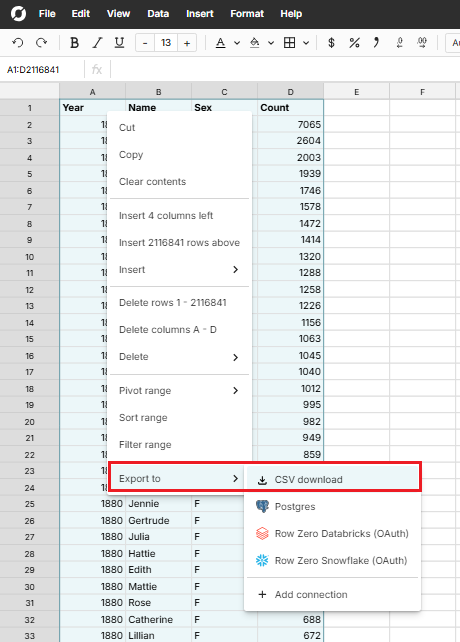
-
You can export to CSV with a data table by right-clicking a data table and selecting Export to CSV.
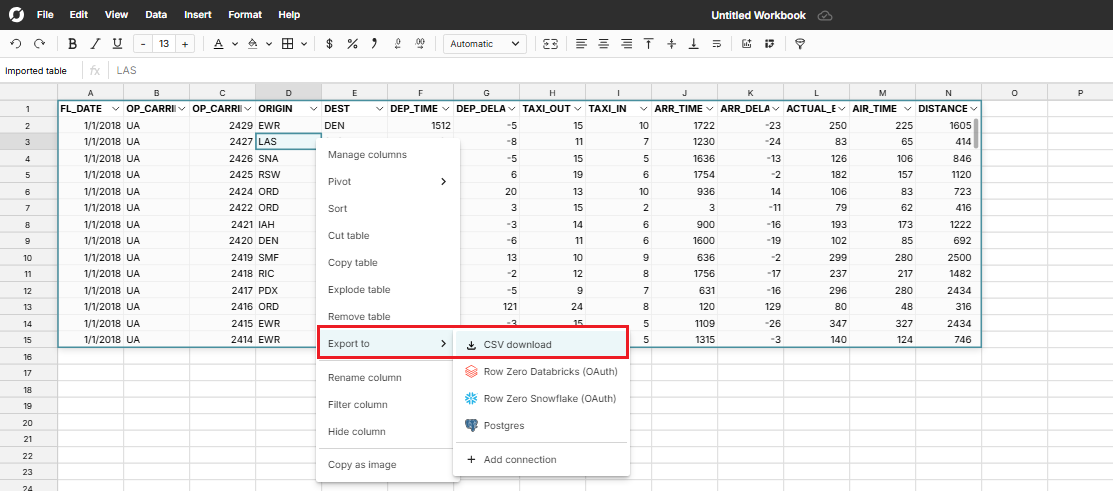
Details of export to CSV
- Export to CSV is not available in free accounts. If you are on a free account and want to share your dataset, you can use the 'Share' button in the upper right-hand corner. Export CSV is available on Pro, Business, and Enterprise accounts.
- Export to CSV can also be accessed by going to File > Download to CSV for any sheet in a workbook that does not contain a data table.
- Exporting a range that includes both cells and data tables will not work. Data tables must be exported to their own CSV because they are independent datasets
- As a security feature, the ability to export data to a CSV can be disabled for enterprise customers, which more securely keeps data in the cloud and off of people's laptops.
Sync to Google Slides
With the Row Zero Add-On, you can insert Row Zero charts and tables directly into your Google Slides presentations and sync them with your Row Zero workbooks with a single click.
When your data changes, refresh an individual chart or table, or update all linked objects in your presentation at once. No re-exporting, no copying and pasting screenshots, and no wondering which slide has the latest numbers.
Install the Add-On
Start by installing the Row Zero Add-on from the Google Workspace Marketplace. You can install the add-on for yourself individually, or, if you are an admin of your Google workspace, you can install the add-on for everyone in your Google workspace.
Add Row Zero charts and tables to a Google Slides presentation
Open a presentation in Google Slides. The first time you open a presentation you may need to allow the add-on to access the file.
There are two ways you can add content to a presentation:
-
Copy and paste charts: Copy a chart or table from Row Zero and paste it into your slide.
-
Import charts or tables from the add-on: You can also select the chart(s) you would like to import from the Add-On directly. Open the add-on, select your workbook, and then select the desired charts.
Sync Row Zero charts and tables in Google Slides
To sync the slides in your presentation, open the Row Zero Add-on and choose the charts or tables you’d like to sync, or select “Sync all”.
Write-back to Data Warehouse
Row Zero can write data from the spreadsheet into a data warehouse. To use the write-back feature, a workbook must already have a connection to a data warehouse. To connect a data warehouse, follow instructions for your specific data warehouse on our Data Import page. Once a data warehouse is connected follow these steps to write spreadsheet data into the data warehouse.
Write back to data warehouse:
-
Select a range of data or data table
-
Right-click
-
Select 'Export To
<data warehouse>'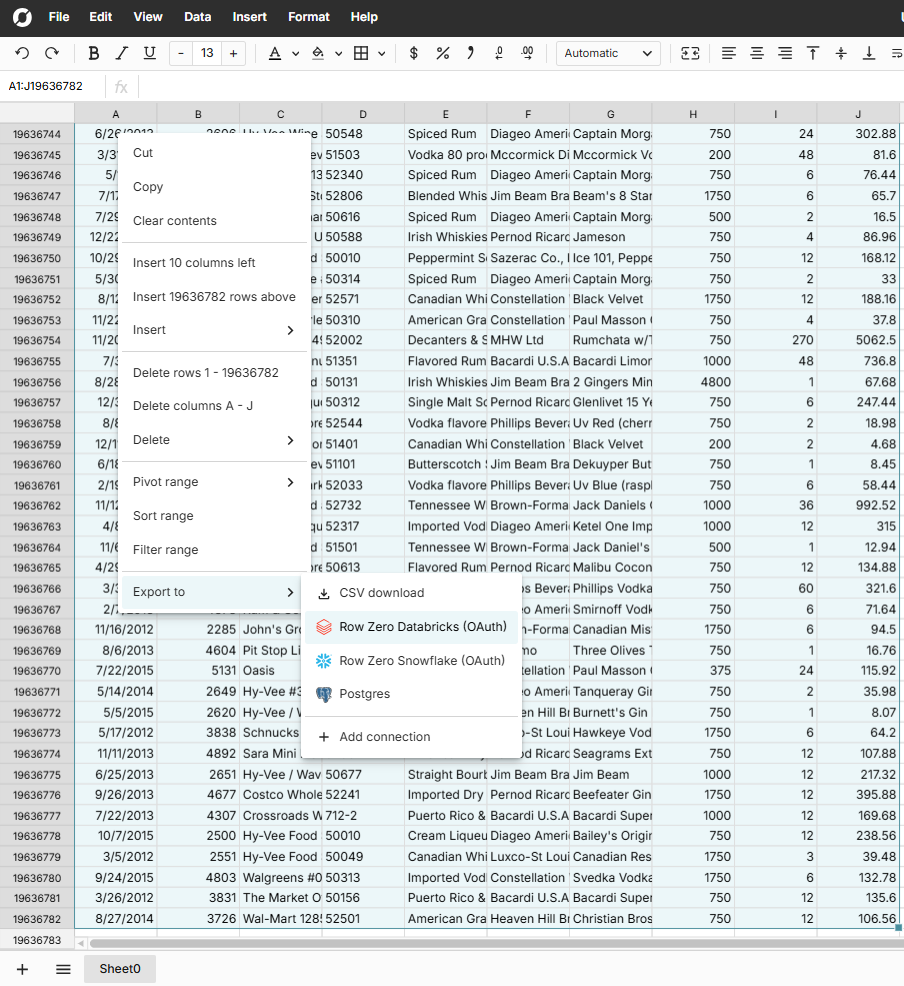
-
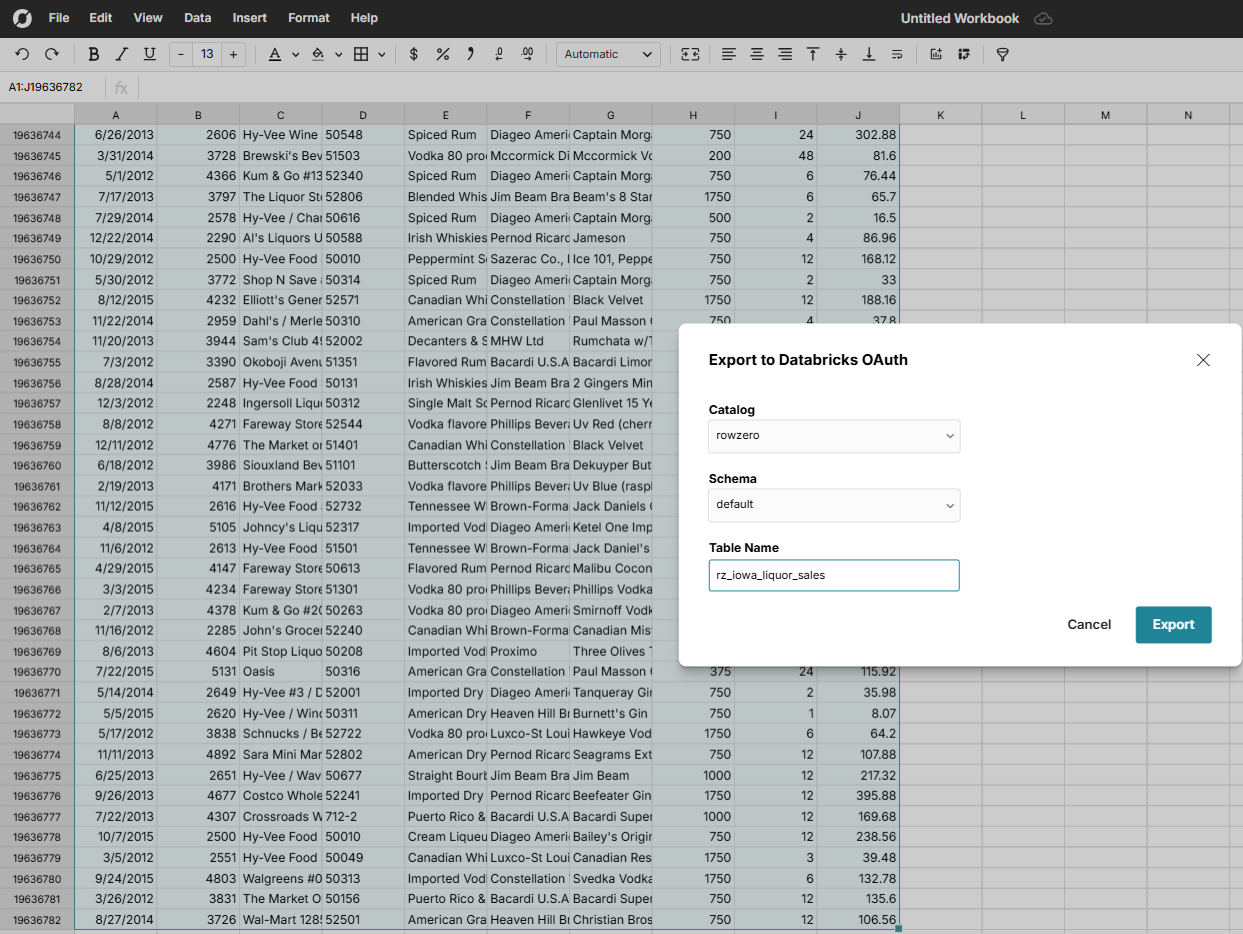
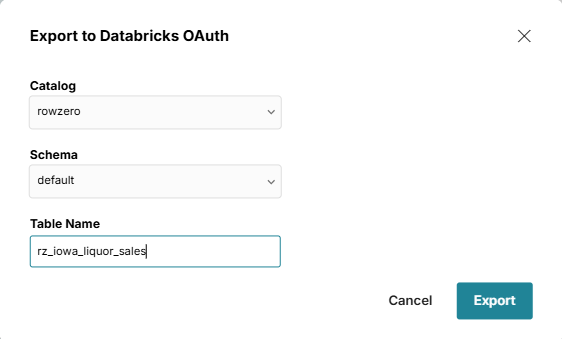
Choose your database and schema.
-
Name your table. Row Zero will create a new table with the data in your range or data table. All exported table names must be prefaced with "rz_" to prevent overwriting a core table that wasn't meant to be overwritten.
Details of Write-back to Data Warehouse
- Write-back to a data warehouse must be preceded by connecting a data connection. Instructions for connecting data sources can be found in Data-Import.
- An individual user must have 'Write' access to the conncted Data Warehouse in order to use the 'write-back to data warehouse' feature.
- Write-back to data warehouse is available to Business Tier customers.
- Each time data is saved to the data warehouse Row Zero will create a new table with the selected dataset. The new table will overwrite any table with the same name. Under the hood we're issuing a CREATE OR REPLACE table statement.
Best practices for data teams
- It's common to create a separate schema where users put their exported rz_ tables. This ensures these tables are segregated from the pristine fact tables managed by the data team.
- This schema functions similarly to a shared drive that teams use to share files. You can have multiple such schemas if you need more granular control over permissions (even one per user).
- If you find one of these rz_ tables is becoming heavily depended on, consider lifting it into your ETL pipeline. But until this happens, your users aren't blocked and can participate in your data lake in self-service fashion.