Connect Postgres to Row Zero
Row Zero makes it easy to connect to Postgres with a built-in Postgres connector. Follow the instructions below to connect to Postgres, share your connection with others, and import data to a spreadsheet.
Create your Postgres connection
Row Zero supports two ways to authenticate to PostgreSQL. Use whichever fits your security posture:
- Password-based Authentication
- AWS IAM Role-based Authentication (via AWS IAM / RDS IAM DB auth)
To create a new connection:
-
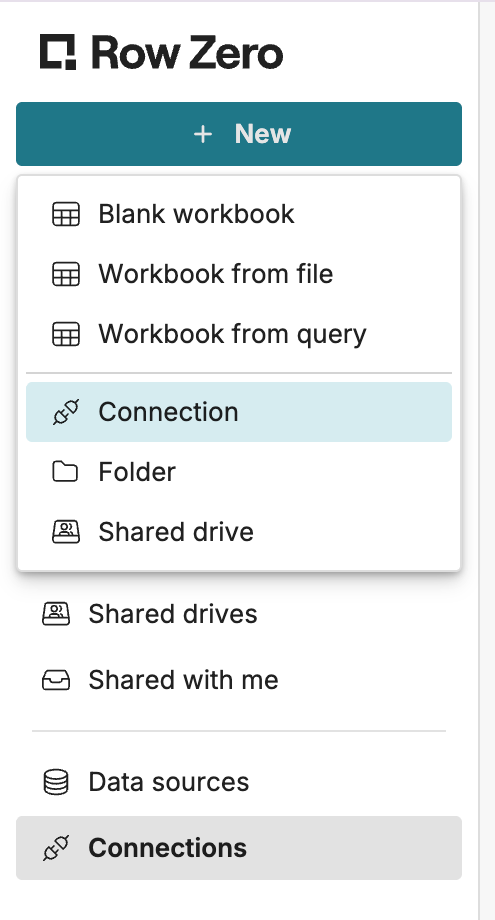
From your Row Zero homepage, click + New in the upper left corner and then choose Connection.
-
Choose Postgres. The Postgres connector requires a few pieces of information defined below.
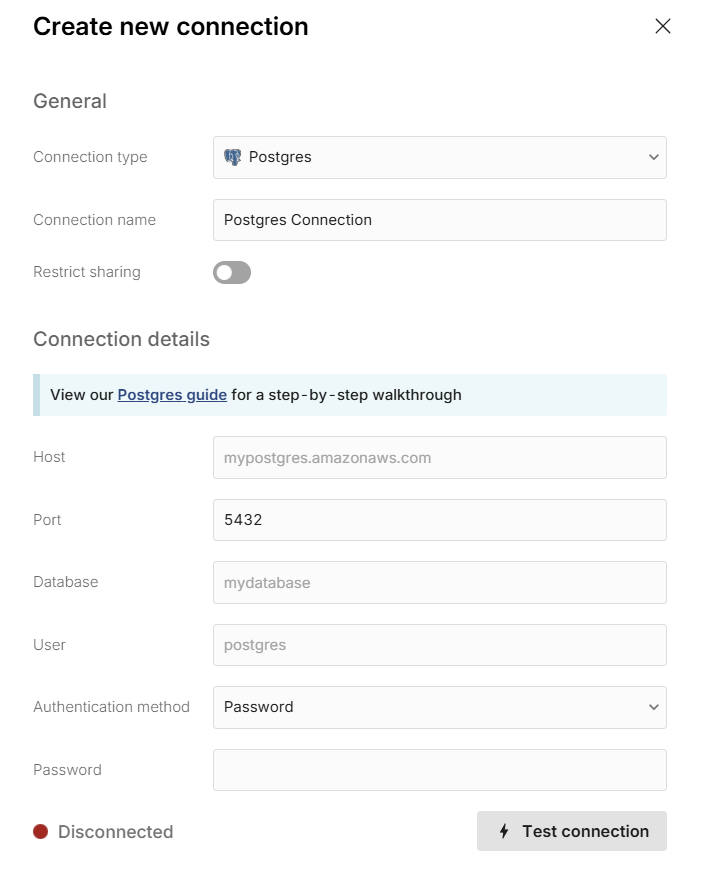
- Connection name - This field can be anything that helps identify the data source being connected (e.g. "Production Data" or "Product Metrics"). It will be visible to all users who have access to this connection.
- Host - This is the PostgreSQL address that typically takes the form of a string like 'database.mydomain.com'.
- Port - This is often 5432.
- Database - The name of the PostgreSQL database being connected to.
- User - This is the username for your PostgreSQL database.
Password-based Authentication
For password-based authentication, populate the following:
- Authentication method — Password
- Password — The password used to log into your PostgreSQL Database.
Once all the information is entered, hit 'Test connection' to ensure the information is correct. If the test connection icon turns green and says 'Connected', proceed by clicking on 'Create connection'.
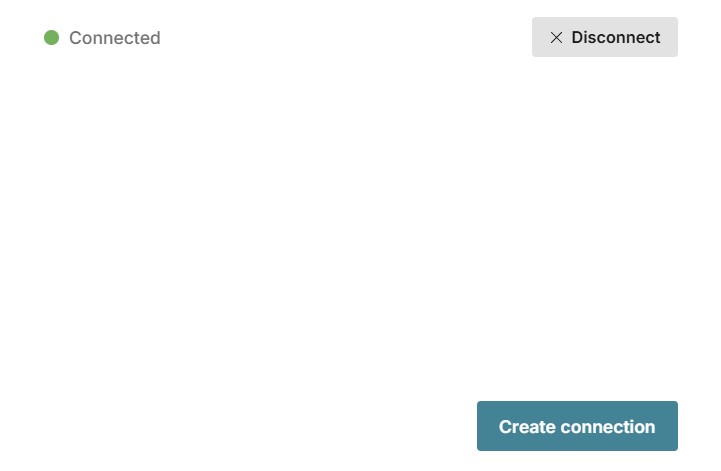
Note - If your database is behind a VPN or firewall, you'll need to allow the Row Zero IP addresses: 18.217.97.112 and 18.224.119.220.
AWS IAM Role-based Authentication (AWS IAM / RDS)
For AWS IAM-based authentication, populate the following:
- Authentication method — AWS IAM
- Role ARN — the ARN of the role to connect to RDS PostgreSQL that can connect to RDS and assume a role (see below for instructions to setup).
- AWS Region — The AWS region your RDS Postgres instance is located in.
- External ID - This is a value will be populated by the Row Zero application and must be included in your AWS IAM role trust policy (see below for instructions to setup).
Once all the information is entered, hit 'Test connection' to ensure the information is correct. If the test connection icon turns green and says 'Connected', proceed by clicking on 'Create connection'
Note - If your database is behind a VPN or firewall, you'll need to allow the Row Zero IP addresses: 18.217.97.112 and 18.224.119.220.
AWS IAM Role-based Authentication Setup Instructions
Create an AWS IAM Role for Postgres Access that will be assumed by Row Zero via STS in order to connect to your database.
- Create a new IAM Role in the same account as your PostgreSQL / RDS instance.
- Attach a trust policy that allows Row Zero's IAM principal (or account) to assume this role, with an External ID condition.
- Attach permission policies allowing it to call
rds-db:connectto your target DB user. - Configure the RDS / PostgreSQL instance to have IAM authentication enabled.
- Create a PostgreSQL database user that your IAM role will connect as and grant the rds_iam role to that user (
GRANT rds_iam TO <username>;). This enables the user to authenticate using AWS IAM tokens.
Sample trust policy (you must substitute in the External ID that Row Zero provides during setup):
{
   "Version": "2012-10-17",
   "Statement": [
       {
           "Effect": "Allow",
           "Principal": {
               "AWS": [
                   "arn:aws:iam::732940336628:role/DataSourceProxyRole"
               ]
           },
           "Action": "sts:AssumeRole",
           "Condition": {
               "StringEquals": {
                   "sts:ExternalId": "<EXTERNALID_FROM_ROW_ZERO>"
               }
           }
       }
   ]
}
Permissions policy example (scope to your DB instance / user):
{
   "Version": "2012-10-17",
   "Statement": [
       {
           "Effect": "Allow",
           "Action": "rds-db:connect",
           "Resource": "arn:aws:rds-db:<region>:<account-id>:dbuser:<db-resource-id>/<database-username>"
       }
   ]
}
Share your connection with other users
If you would like other users to be able to use this credential to query Postgres from Row Zero, you can securely share the connection with them in Row Zero. This is appropriate if multiple users share a service account. To share your connection in Row Zero:
- Navigate to your Connections page.
- Find the Connection that you'd like to share, click '...' next to the name of the connection, and select 'Manage sharing'.
- Enter the emails of the users or groups that should have access to this connection.
Write a query to import Postgres data
Now that you have created a Postgres connection, you can import data by writing queries directly from Row Zero. See Data Import to learn how.