Connect SQLServer to Row Zero
Row Zero's built-in SQLServer connector makes it easy to connect your spreadsheets to a SQLServer database. Follow the instructions below to connect to SQLServer, share your connection with others, and import data.
Create your SQLServer connection
-
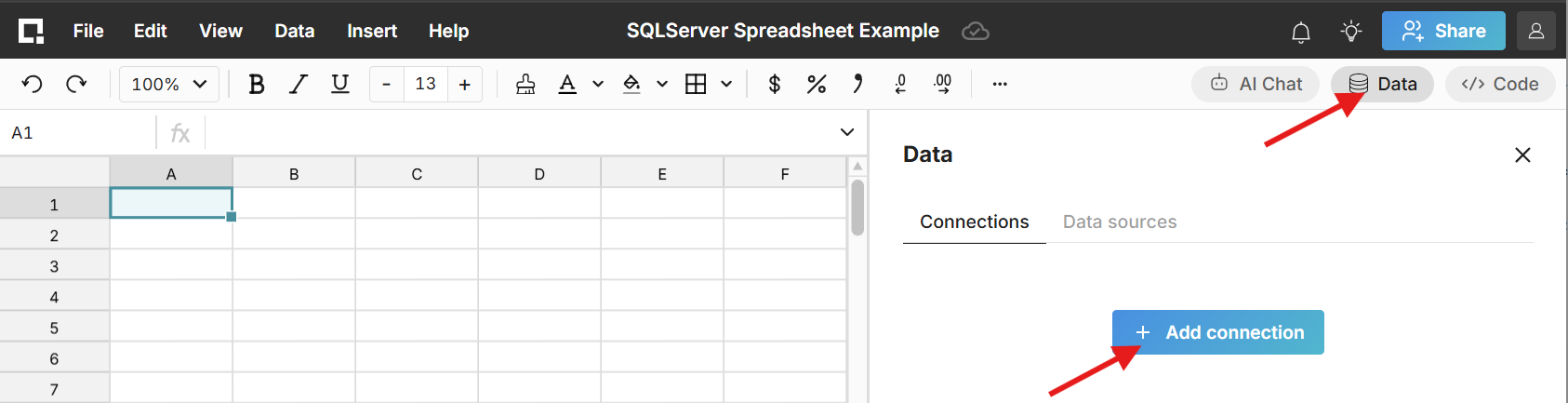
In a Row Zero workbook, click on the 'Data' icon in the upper right-hand corner, click 'Add connection', and select SQLServer.
-
The SQLServer connector requires a few pieces of information defined below.
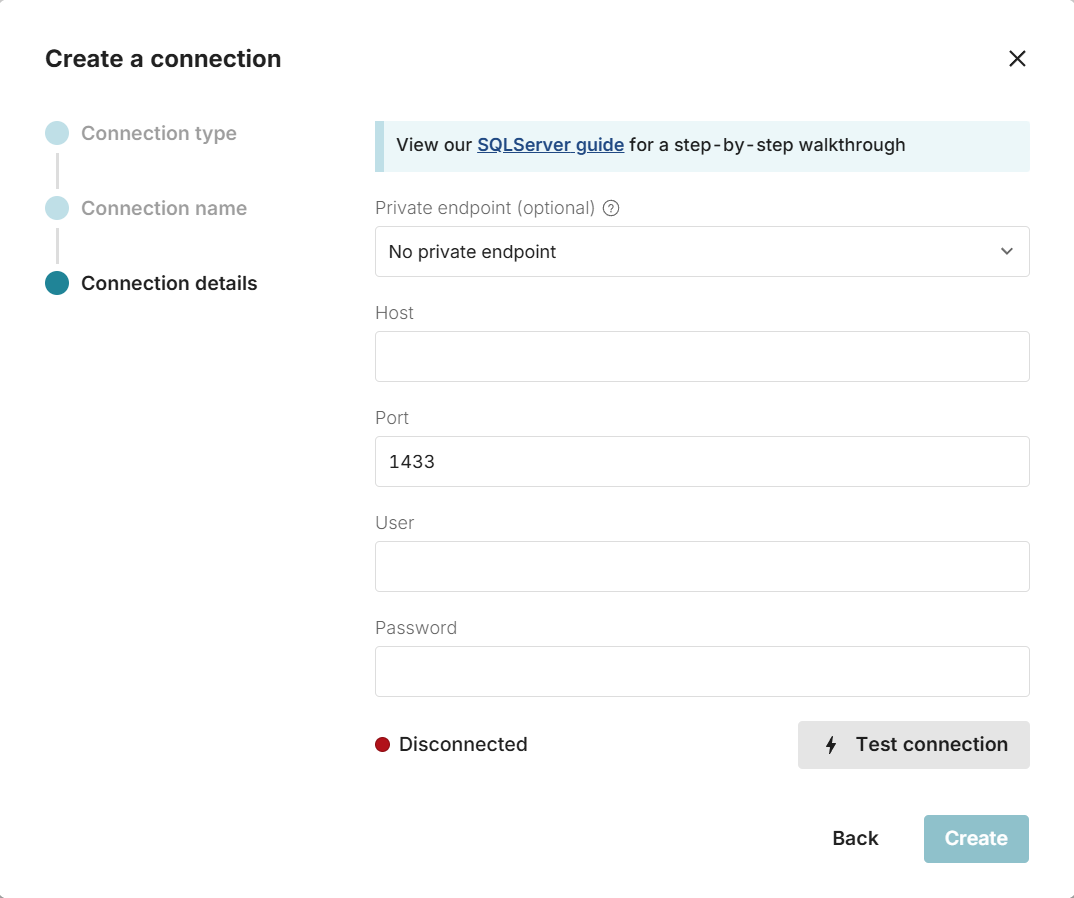
- Connection name - This field can be anything that helps identify the data source being connected (e.g. "Production Data" or "Product Metrics"). It will be visible to all users who have access to this connection.
- Host - This is the SQLServer address that typically takes the form of a string like 'database.mydomain.com'.
- Port - This is often 1433.
- User - This is the username for your SQLServer database.
- Password - The password used to log into your SQLServer database.
- Once all the information is entered, hit 'Test connection' to ensure the information is correct. If the test connection icon turns green and says 'Connected', proceed by clicking on 'Create Connection'.
Note: If your database is behind a VPN or firewall, you'll need to allow the Row Zero IP addresses: 18.217.97.112 and 18.224.119.220.
- If you would like other users to be able to use this user/password to query SQLServer from Row Zero, you can securely share the connection with them in Row Zero. This is appropriate if multiple users share a service account. To share your connection in Row Zero:
- Navigate to your Connection page.
- Find the Connection that you'd like to share, click '...' next to the name of the connection, and select 'Manage sharing'.
- Enter the emails of the users or groups that should have access to this connection.
Write a query to import SQLServer data
Now that your spreadsheet is connected to SQLServer, you can import data by writing queries directly from Row Zero.
-
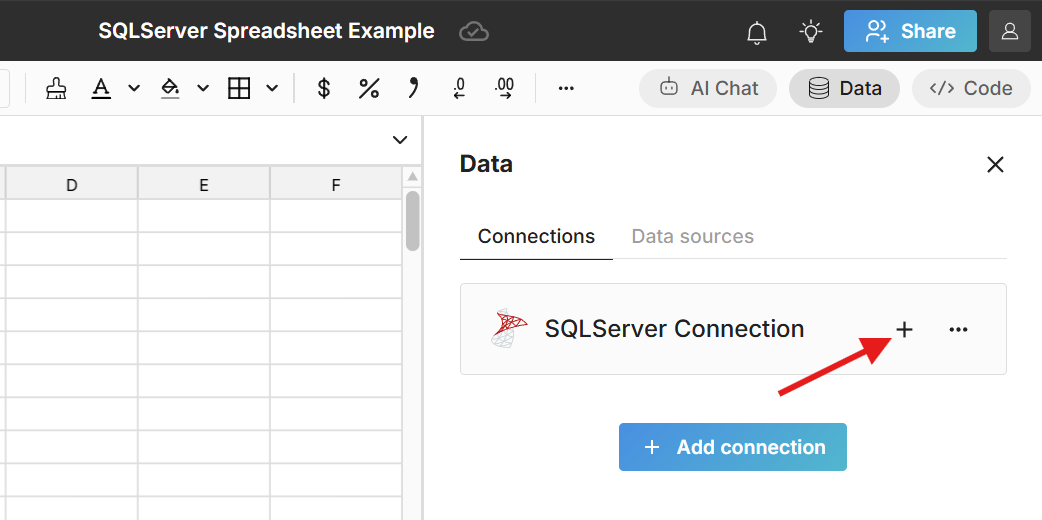
From any Workbook, click 'Data', and then click the '+' sign next to your SQLServer connection to insert a connected table. This adds a data table to your spreadsheet that is connected to SQLServer and opens a query editor.
-
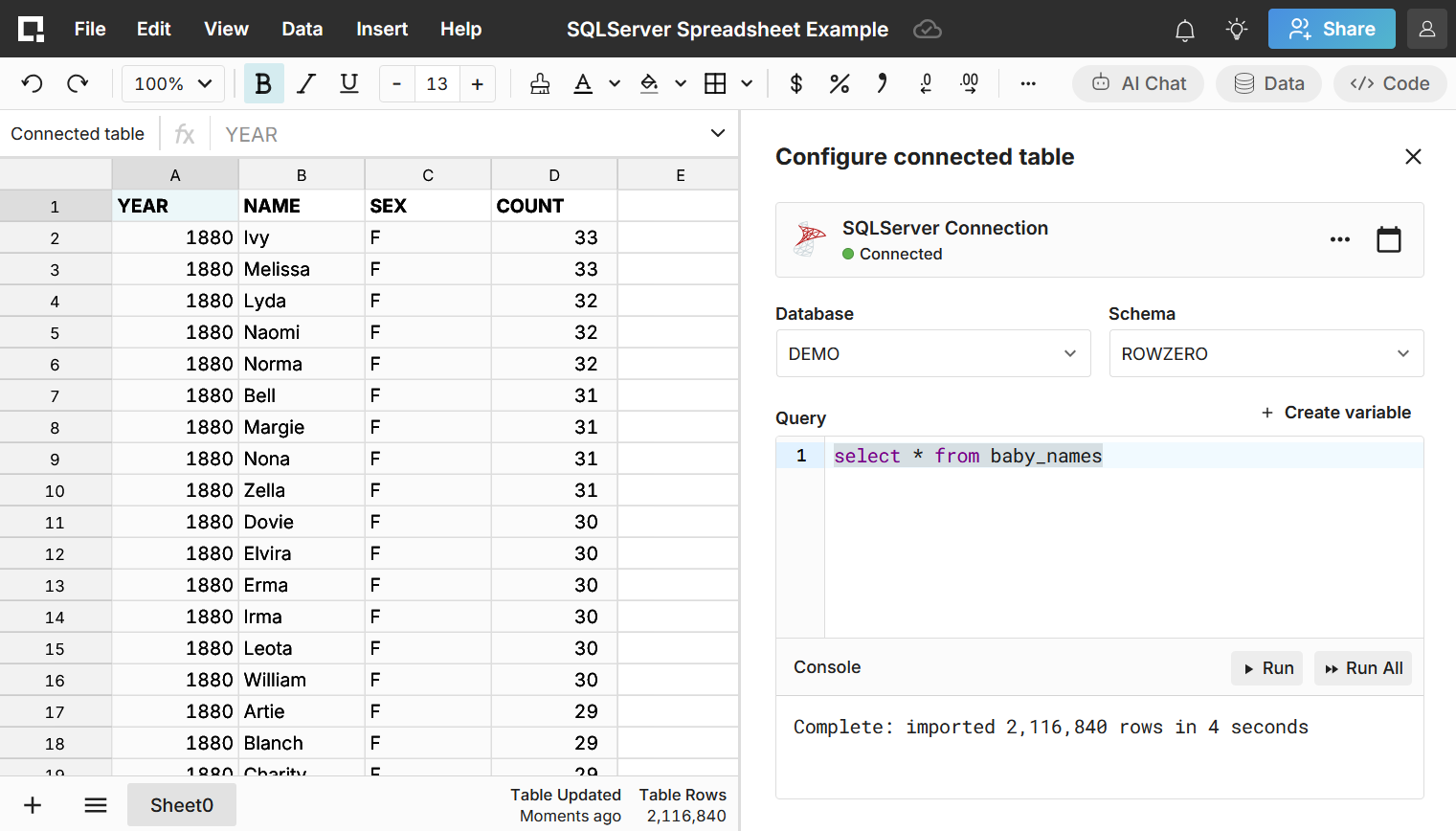
Write a SQL query for the data you'd like to import. The easiest query to write is a
select *statement, which pulls in the entire table. For example:select * from table_name -
Click 'Run' to execute the query and import the queried SQLServer data into your spreadsheet.
-
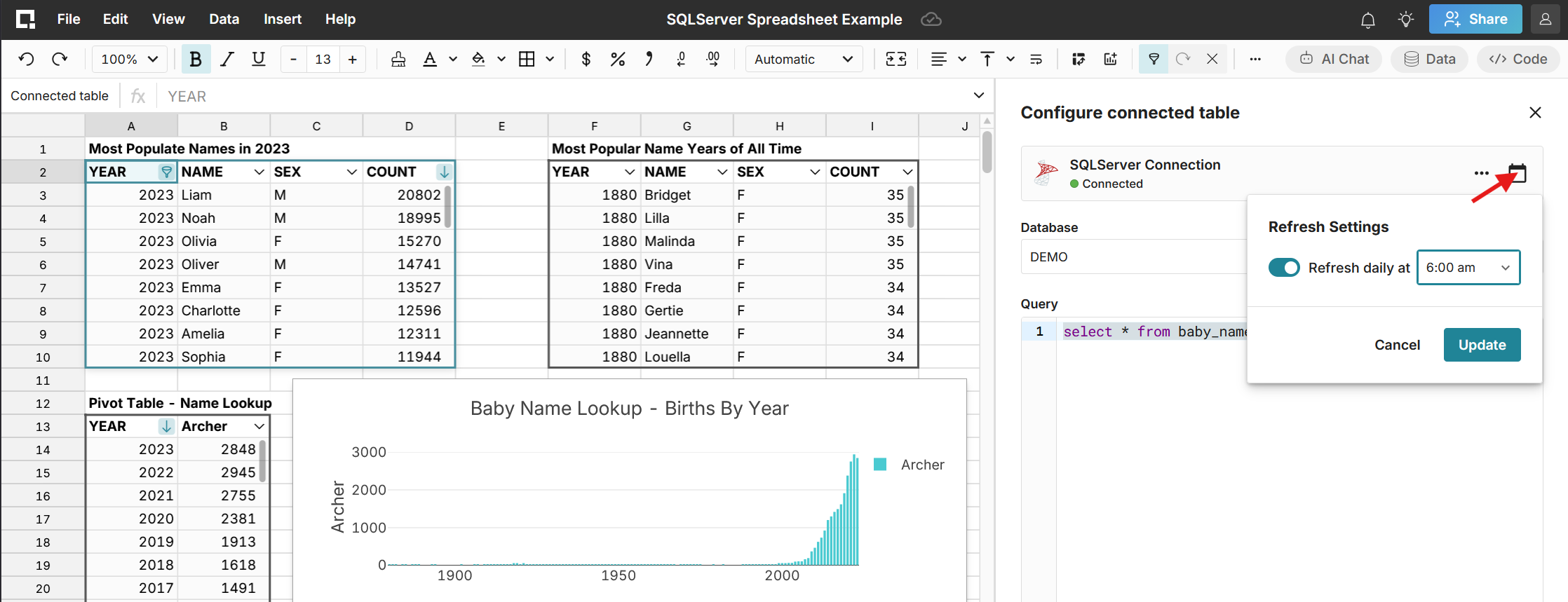
The data imports directly into a connected table, a dynamic, condensed view of the data that makes it easy to refresh and analyze your data.
-
Double-click on the connected table to re-run your query for the latest data or schedule auto-refresh and everything built on connected data automatically updates and stays in sync.
-
Once you've imported your SQLServer data, you can build out your connected spreadsheet, adding computed columns, pivot tables, charts, and more.