Templates
Templates are published workbooks. When you open a template, you create your own temporary copy in a new workbook.
Templates do not store query data. When a user opens a template, any included queries automatically run with the user’s credentials. This is especially useful in cases where RLS rules prevent users from directly sharing workbooks.
Because each user creates their own copy when opening a template, they can also filter or modify the sheet without impacting other users. Any changes they make to their copy will not change the original template and vice versa.
Note: Templates are currently in beta and available to select Enterprise customers.
Publishing templates
You can create a template from any workbook. Here’s how:
-
Create your workbook.
-
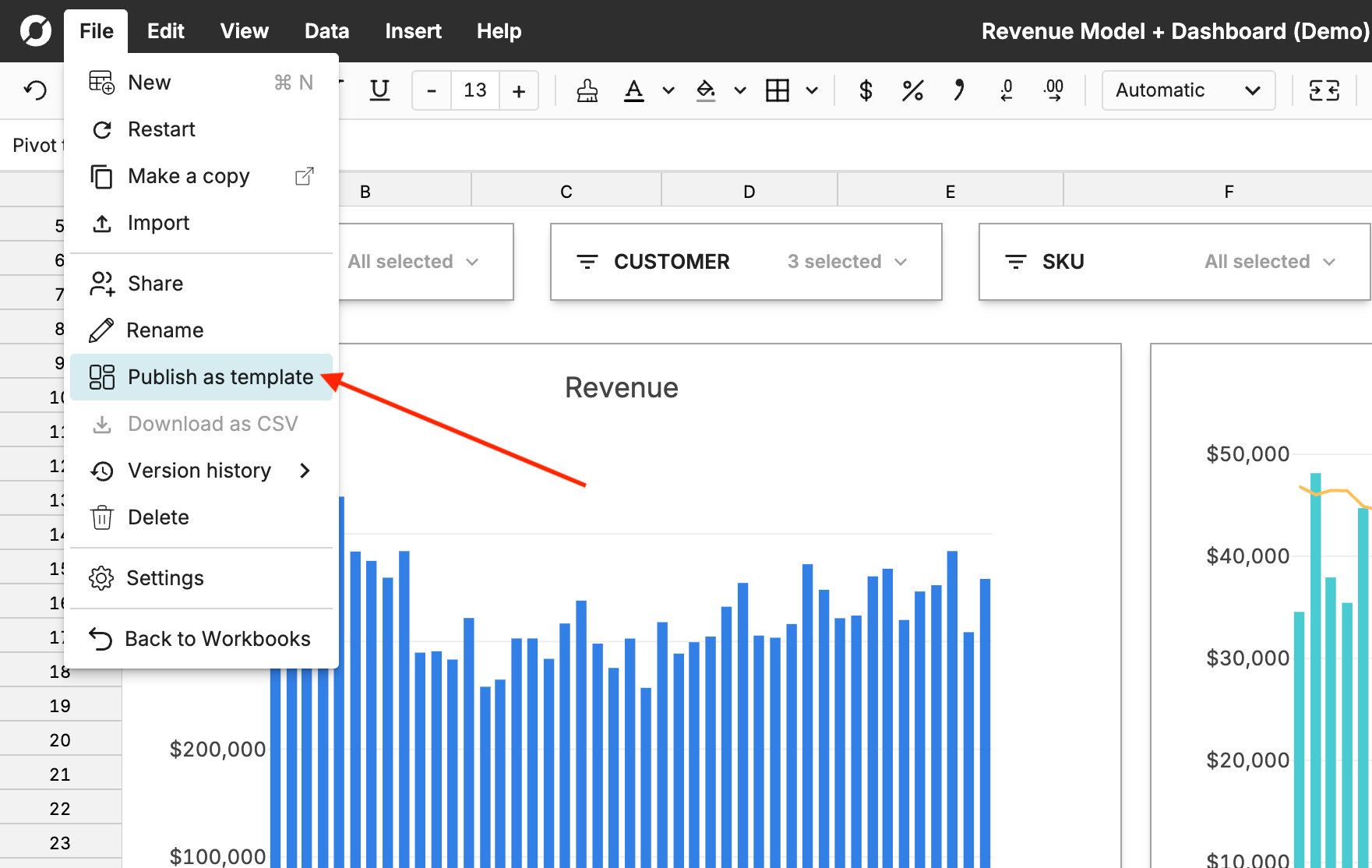
When you’re ready to publish, select Publish as template from the File menu.
-
Select Create new template, review the template contents, create a Name and Description (these will be visible to anyone who you share it with), and then click Create template.
Sharing templates
To share a template with other users:
-
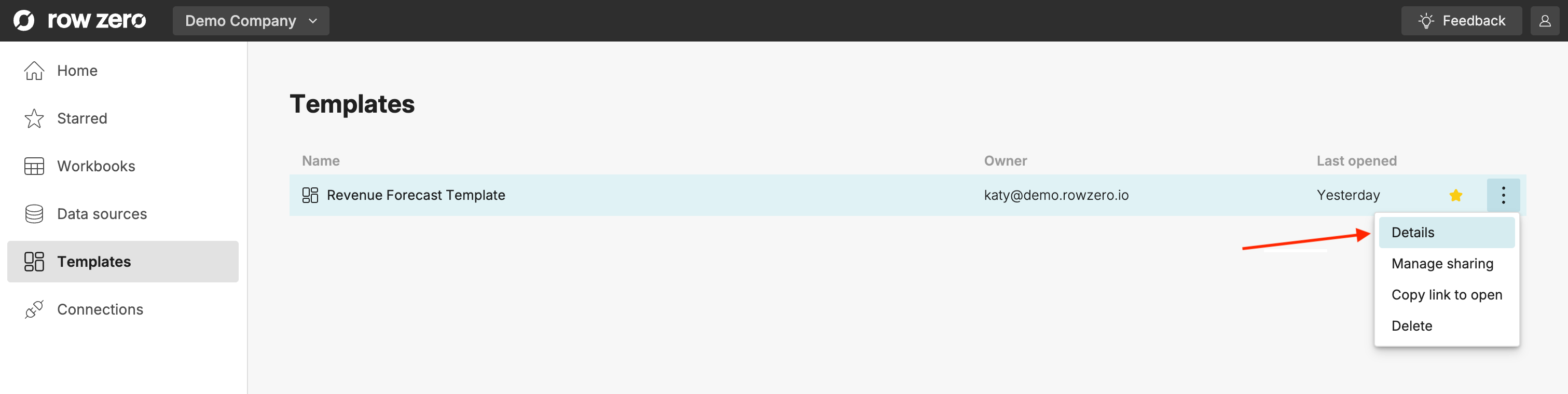
Find your template in your Templates list and click the three dots next to the template name.
-
Select Details. This will open the template details page.
-
Select Share. Add users or groups, check the box next to Email invited users to notify them via email, then click Close.
-
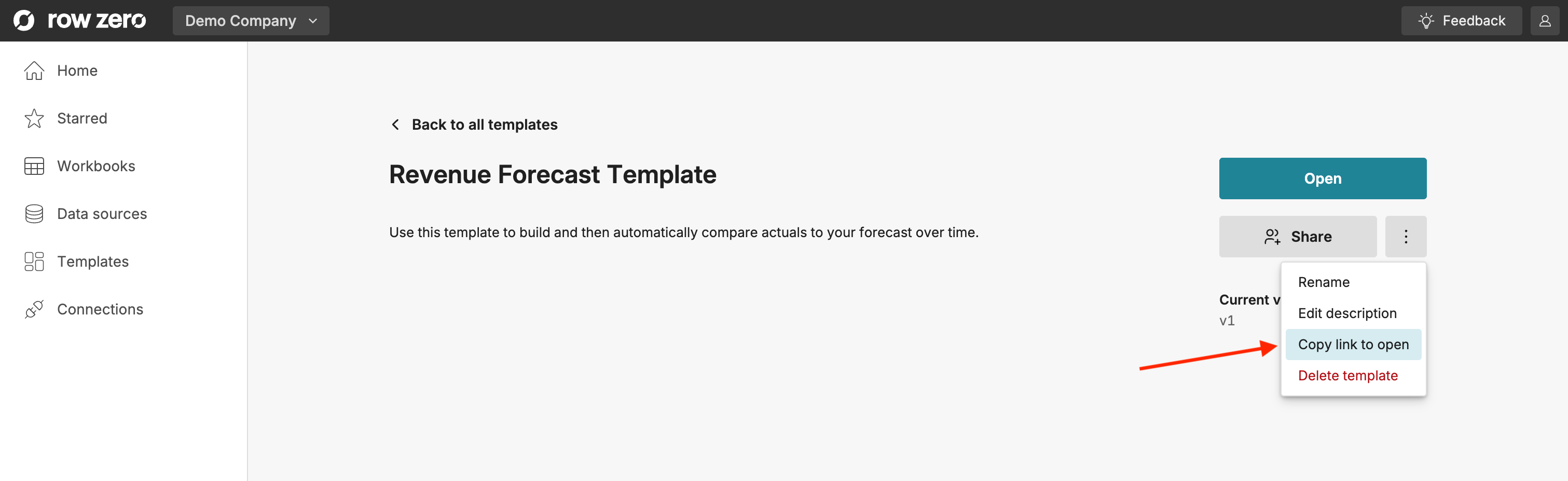
If you’d like to share a direct link to the template with other users, you can either give them a link to the Templates detail page by copying the details page URL or give them a link that opens a new copy by clicking Copy link to open.
Note: If your template contains a connected table, your users will also need access to the connection(s) and/or data source(s) embedded in that template. Learn how to share data sources here.
Using templates
You can access any templates that you created or that have been shared with you from your Templates list.
To open the template, click on the template name. A temporary copy of the workbook will open.
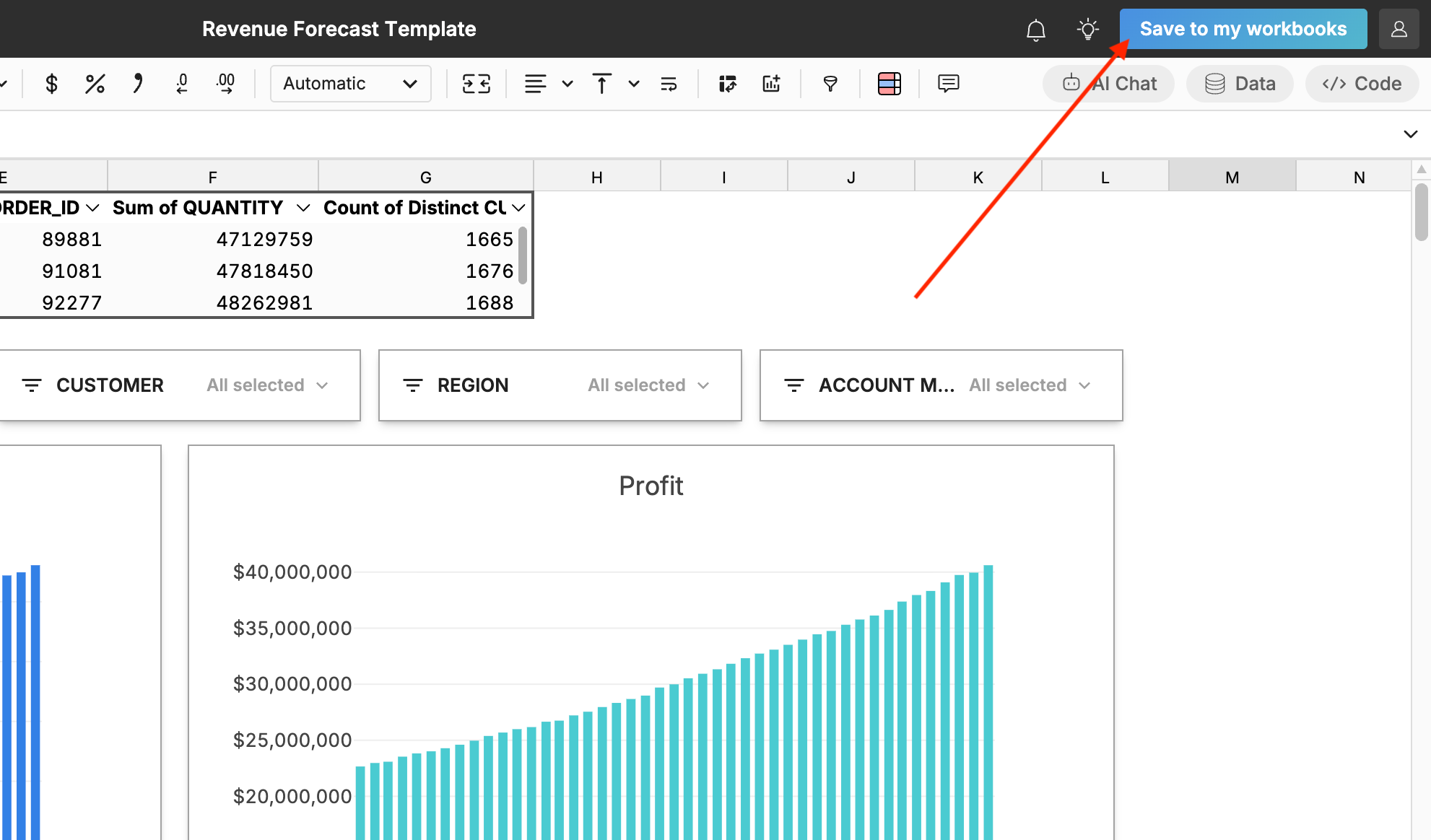
This copy will not automatically save to your workbooks. If you’d like to save your copy, click Save to my workbooks in the top right corner. If you do not save your copy, it will be deleted.
Note: If you’re using a template as a dashboard, there’s no need to save your copy. Opening a new, temporary copy each time you access the workbook ensures you always have the most current version.