Folders and organization
Row Zero organizes content into four locations, depending on who owns it and who it's shared with. This page covers those locations, how to create and share drives and folders, and how to search across your workspaces.
| Location | Contents |
|---|---|
| My drive | Content you own |
| Shared drives | Content owned and maintained by a team |
| Shared with me | Content shared directly with you by members of your workspace |
| External | Content shared with you from workspaces that you're not a member of |
Each workbook, template, or folder exists in exactly one location.
My drive
My drive contains content that you own. Use it for workbooks, templates, and folders that you want to retain sole ownership of.
You can share individual workbooks, templates, and folders with other users without moving them into a Shared drive. See Sharing and collaboration.
Shared drives
Shared drives are shared locations for content that is owned and maintained by a team. Any user with an enterprise or business account can create one.
Use a shared drive when a team needs access to a set of workbooks or templates, and no single person should be the owner that content.
Folders
Folders organize content in My drive and shared drives. A folder can contain workbooks, templates, and other folders.
Drive and folder permissions
Roles
Shared drives and folders use the same three roles.
| Role | Permissions |
|---|---|
| Owner | Manage sharing, and add or remove content from the drive or folder |
| Editor | Add content, but cannot remove existing content from the drive or folder |
| Viewer | View contents of the drive or folder |
Note: Folder owners are always inherited from the parent drive (My drive or a shared drive). New owners can only be added to shared drives.
How roles are inherited
Content (folders, workbooks, or templates) inherits the roles of the drive or folder that contains it. For example, users with Owner access to a Shared drive automatically have Owner access to every workbook stored in that drive, meaning they can share, modify, or delete those workbooks.
Access can only be expanded, it cannot be narrowed. That is, a folder, workbook, or template stored in a shared drive can be shared with a user who does not have access to the parent shared drive, but access cannot be taken away from shared drive members.
If content was shared directly with users before it was moved into a Shared drive, those users retain their existing access after the move.
Organize content in drives and folders
Create a drive or folder
To create a new folder or drive:
-
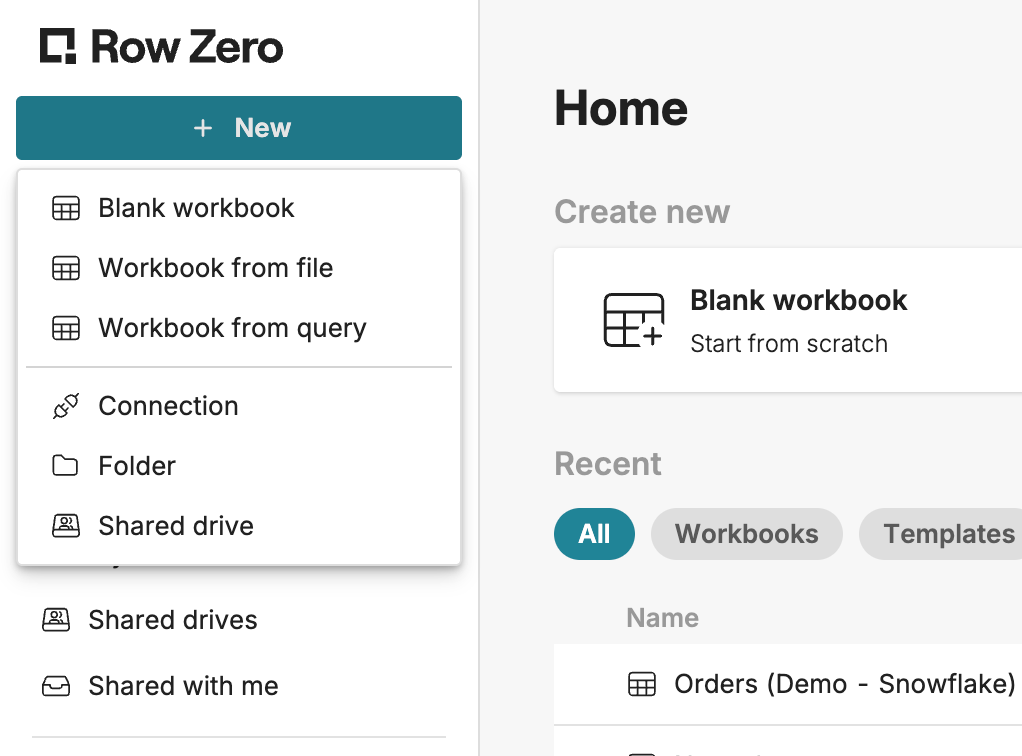
In the top left, click New.
-
Choose what to create, Folder or Shared drive.
-
Enter a name.
-
Click Create.
Share a drive or folder
To share a folder or drive:
-
Open the drive or folder.
-
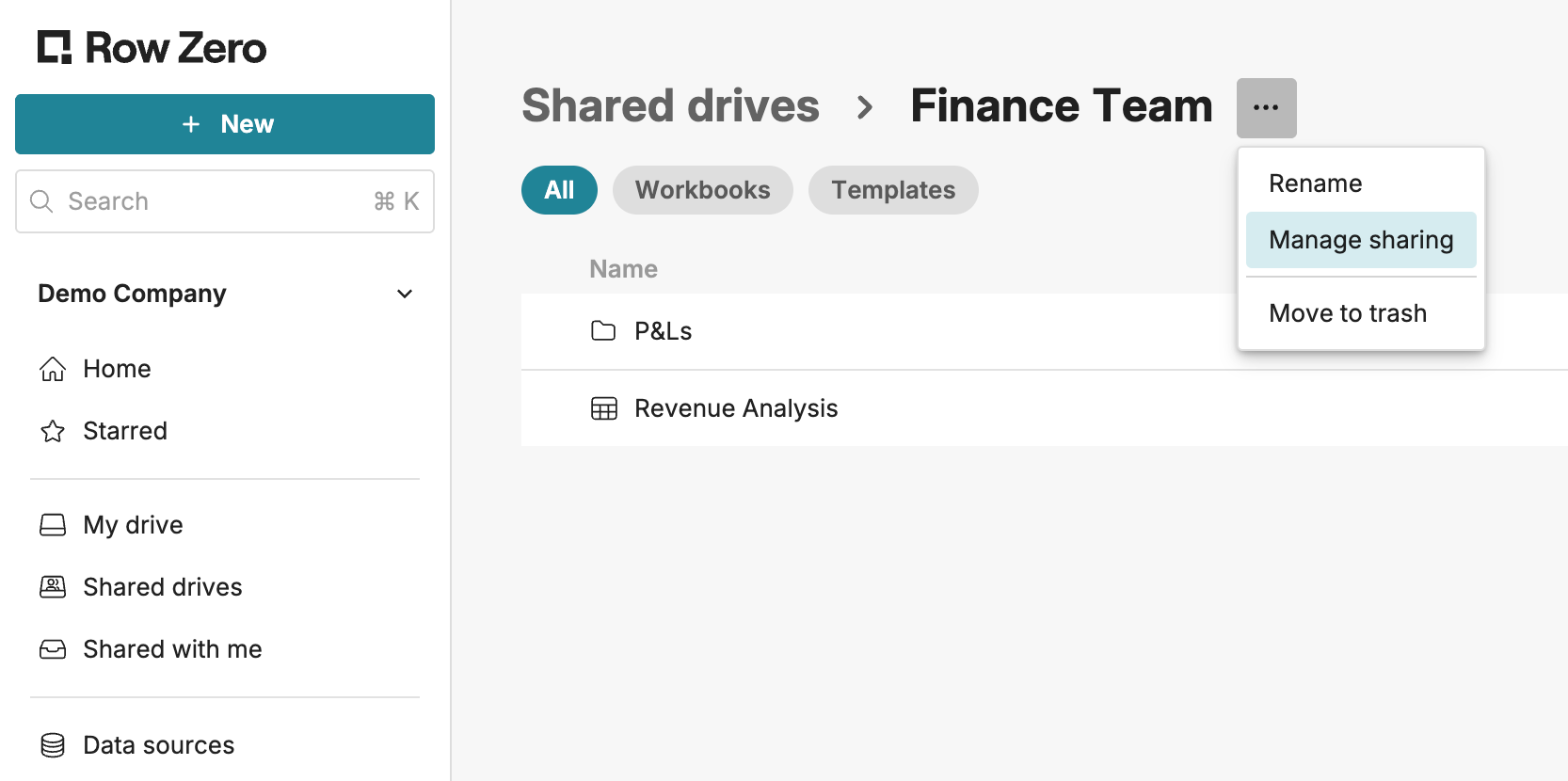
Next to its name, click the three dots.
-
Choose Manage sharing.
-
Add the users or groups you want to share with, and choose their role.
-
Click Confirm.
Move content
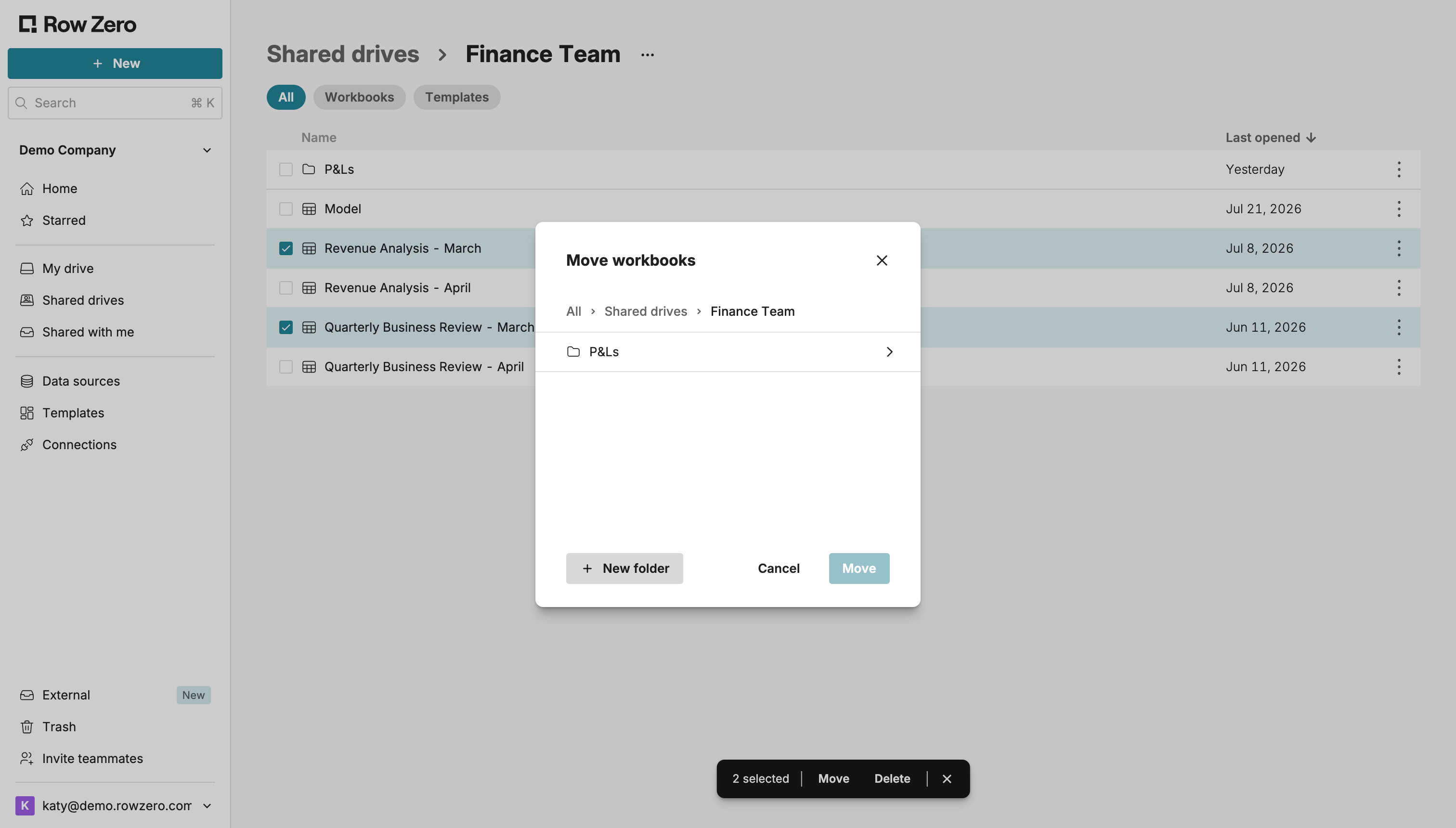
Select the workbooks, templates, or folders you want to move, then either drag them onto the destination or click Move and choose the destination.
To select more than one item, use the checkboxes, or hold Ctrl (Cmd on Mac) and click each item.
Delete a drive or folder
To delete a drive or folder:
- Open the drive or folder.
- Next to the drive or folder's name, click the three dots.
- Choose Move to trash.
Warning: Moving a drive or folder to the trash also moves its contents (workbooks, templates, and nested folders) into the trash. You can restore contents in Trash for a limited period.
Shared with me
The Shared with me section contains workbooks, templates, and folders that have been shared directly with you by members of your selected workspace.
External
The External section contains workbooks and folders shared with you from workspaces that you are not a member of.
Search
Use the search bar to find content within the currently selected workspace. Search results are ranked by relevance. Use the Type filter to narrow results.
Note that search matches names and descriptions (where applicable), not the data inside a workbook.
Workspaces
Workspaces are containers for content within Row Zero. Each one has its own membership, security settings, and data connections that are isolated from other workspaces in an organization. Every workbook belongs to a single workspace.
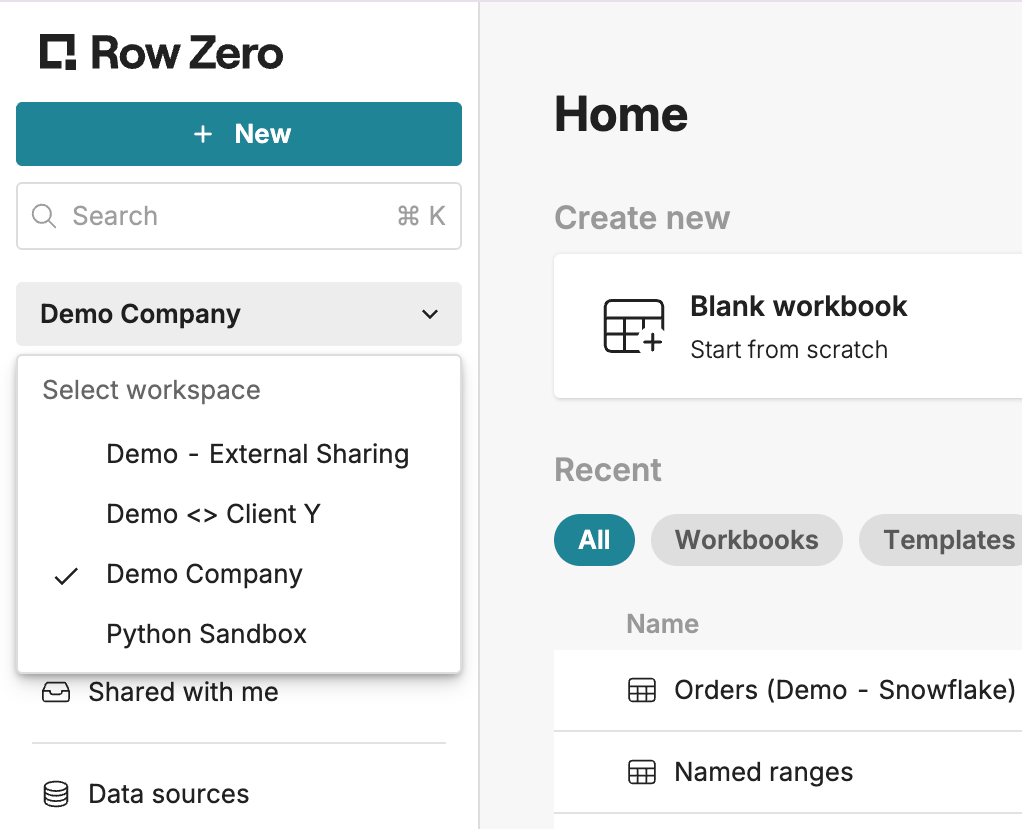
Most users belong to a single workspace. Enterprise customers can belong to multiple workspaces and switch between them using the workspace selector at the top of the page.
Switching workspaces changes the contents of My drive, Shared drives, and Shared with me.
See Workspaces for membership and security settings.