Find and Replace
The find and replace feature makes it easy to find and replace values in a sheet. Use the keyboard shortcut CTRL+H to activate the find and replace feature.
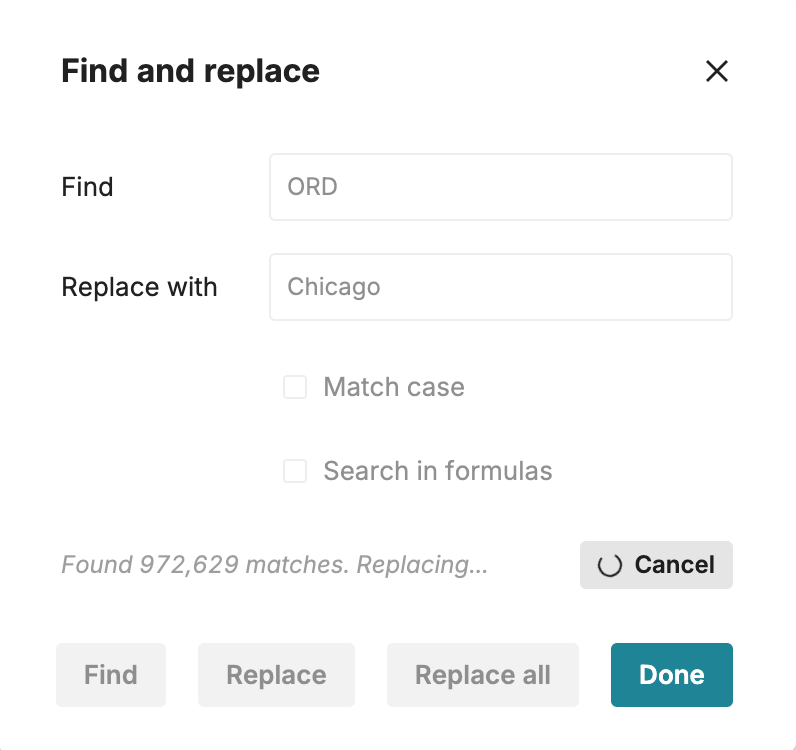
How to use find and replace
- To use Find and replace:
- Press Ctrl+H on your keyboard, or
- Use the menu: Edit > Find and replace.
- Enter the values to find and/or replace. You can optionally check Match case to make the operation case sensitive or check Search in formulas to match formula text.
- Click Find to find matches in the sheet. Click Replace to replace each value individually or Replace all to replace all matching values at once.
You can limit your search to a selected range by selecting the cells to search before activating the find and replace feature. If no cell range is selected, it will search the entire sheet.
The find and replace feature does not currently support searching across sheets.
Functions for find and replace
The following functions let you find and replace text values and substrings.
- SUBSTITUTE - Use to replace text values and text within text
- REGEXREPLACE - Replaces text in a string based on a supplied regular expression
- REPLACE - Replaces part of a text string with another text string, with the ability to specify starting position and number of characters to replace