Open files from Google Drive and Google Sheets
You can open files (CSV, Parquet, XLSX, etc.) directly from Google Drive in Row Zero using the steps below. If you want to open a Google Sheet in Row Zero, first download the file as an XLSX file or CSV and then open in Row Zero.
Open files from Google Drive
Here's how to open a file (CSV, Parquet, XLSX, etc.) in Google Drive directly in Row Zero:
-
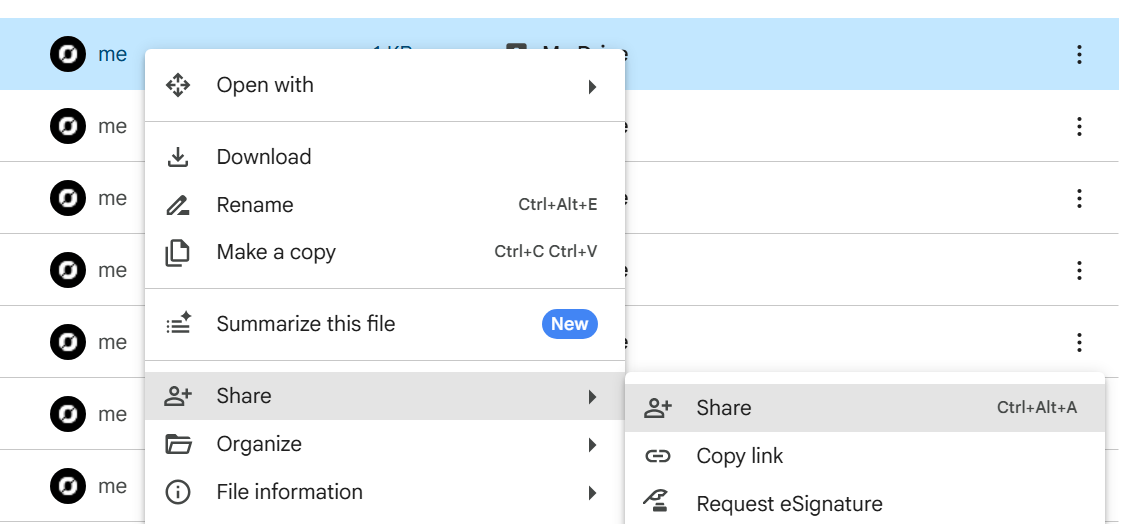
Find your file in Google Drive. Right-click and select Share > Share
-
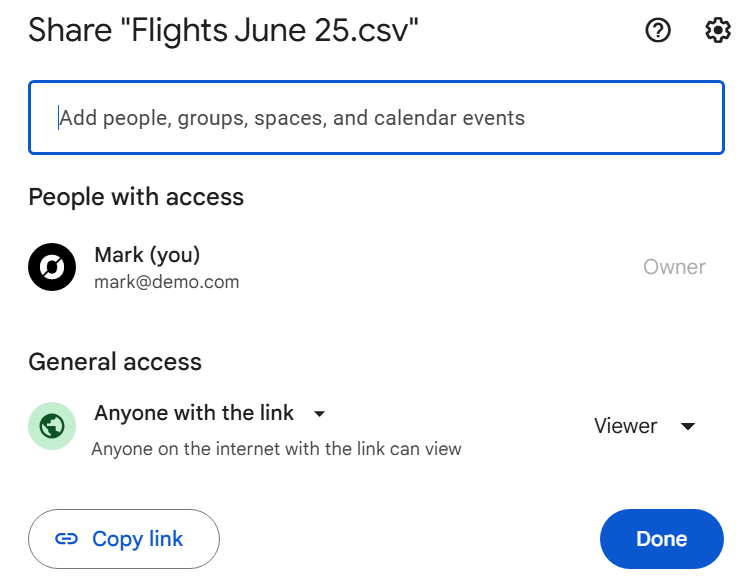
Under “General access” set the file to “Anyone with link” and click “Copy link”
-
Paste the copy link into a blank document and select and copy the file ID portion of the URL. In the example link below this is the ID between /d/ and /view
https://drive.google.com/file/d/1JMFYOO2lYVGEc8X-WBKkREGTrmJpdjY2/view?usp=sharing -
Paste the file ID into the URL structure below and then copy this updated URL:
https://drive.google.com/uc?export=download&id=INSERT_FILE_ID_HERE -
In a Row Zero workbook, go to Data > Import from URL, paste the URL, and click Next.
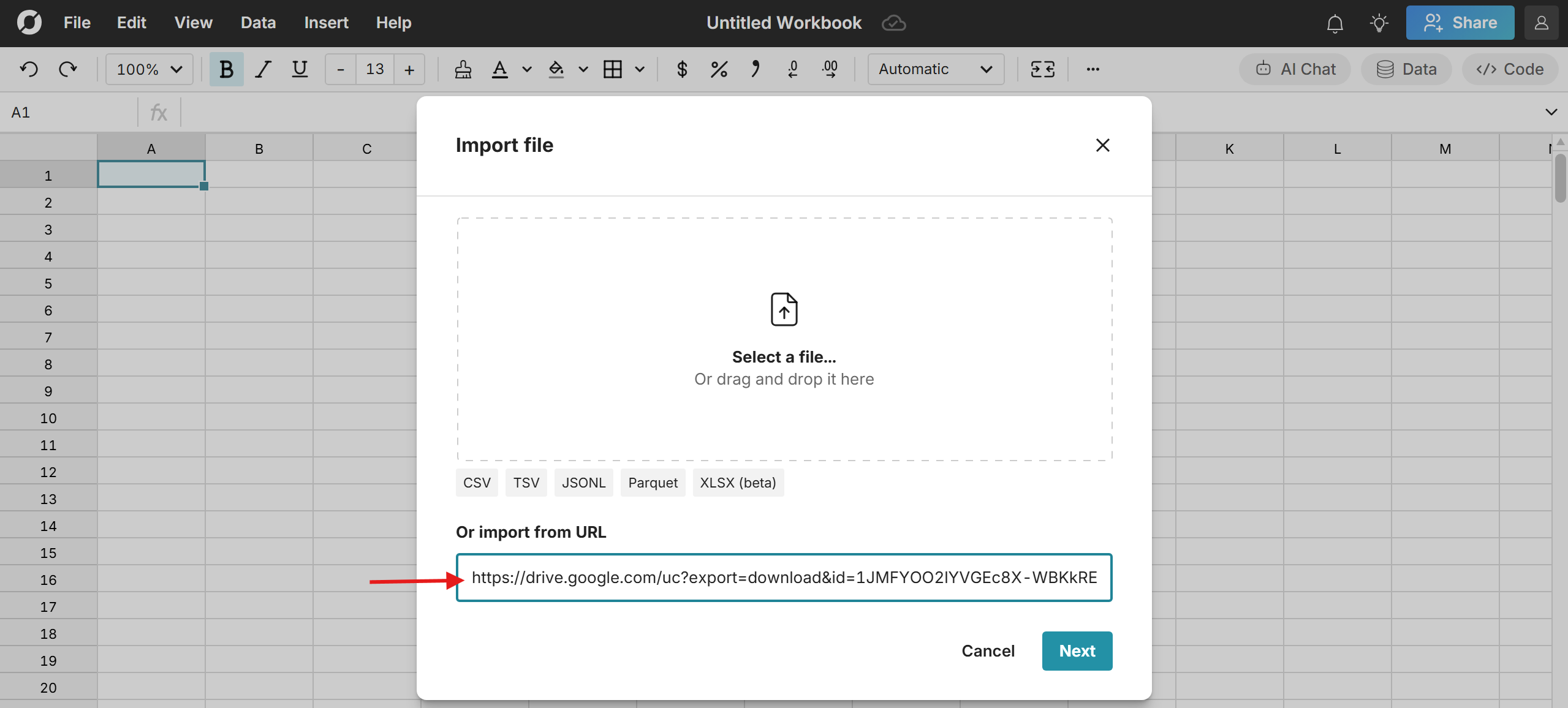
You'll see a preview screen and then click Import to open the file in Row Zero.
Open a Google Sheet in Row Zero
You have 3 options to import a Google Sheet to Row Zero:
-
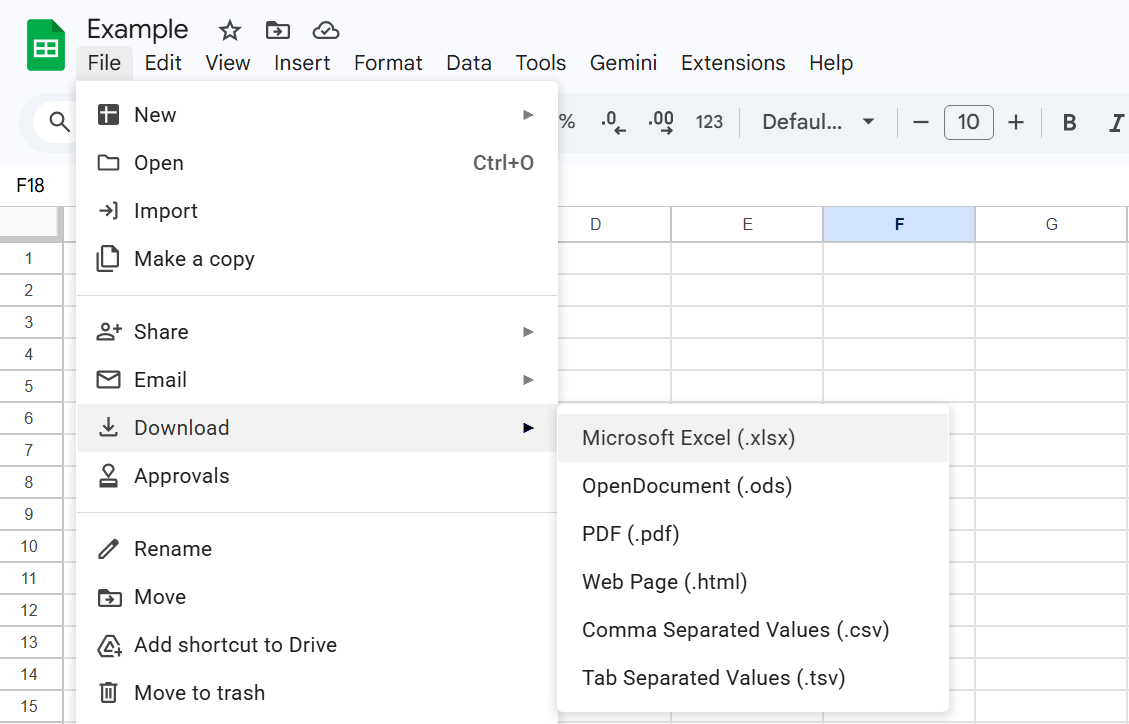
Download the Google Sheet as an XLSX file and open in Row Zero
-
Download a sheet within the Google Sheet as a CSV and open in Row Zero.
-
Import a CSV of a sheet directly with an export to CSV url. Ensure the Google Sheet is shared as “Anyone with link”, copy the sheet ID from the URL of your Google Sheet and paste into the URL structure below.
https://docs.google.com/spreadsheets/d/SHEET_ID/export?format=csv
You can then copy this link and open it in Row Zero by going to Data > Import from URL and pasting this link.